
 Horoshop
- Price
- 100 UAH/mo
- For
- shops
- Required modules
- Products, Orders
What it does
Products, orders, stock and prices with a Horoshop site.
What you need
- Admin access to the Horoshop site.
Where to get the keys
- In the Horoshop admin, open Settings → API.
- Create an API user.
- Note the site address and that user’s login and password.
Connecting in anyCRM
- Open Modules in anyCRM, find “Horoshop” and press Enable.
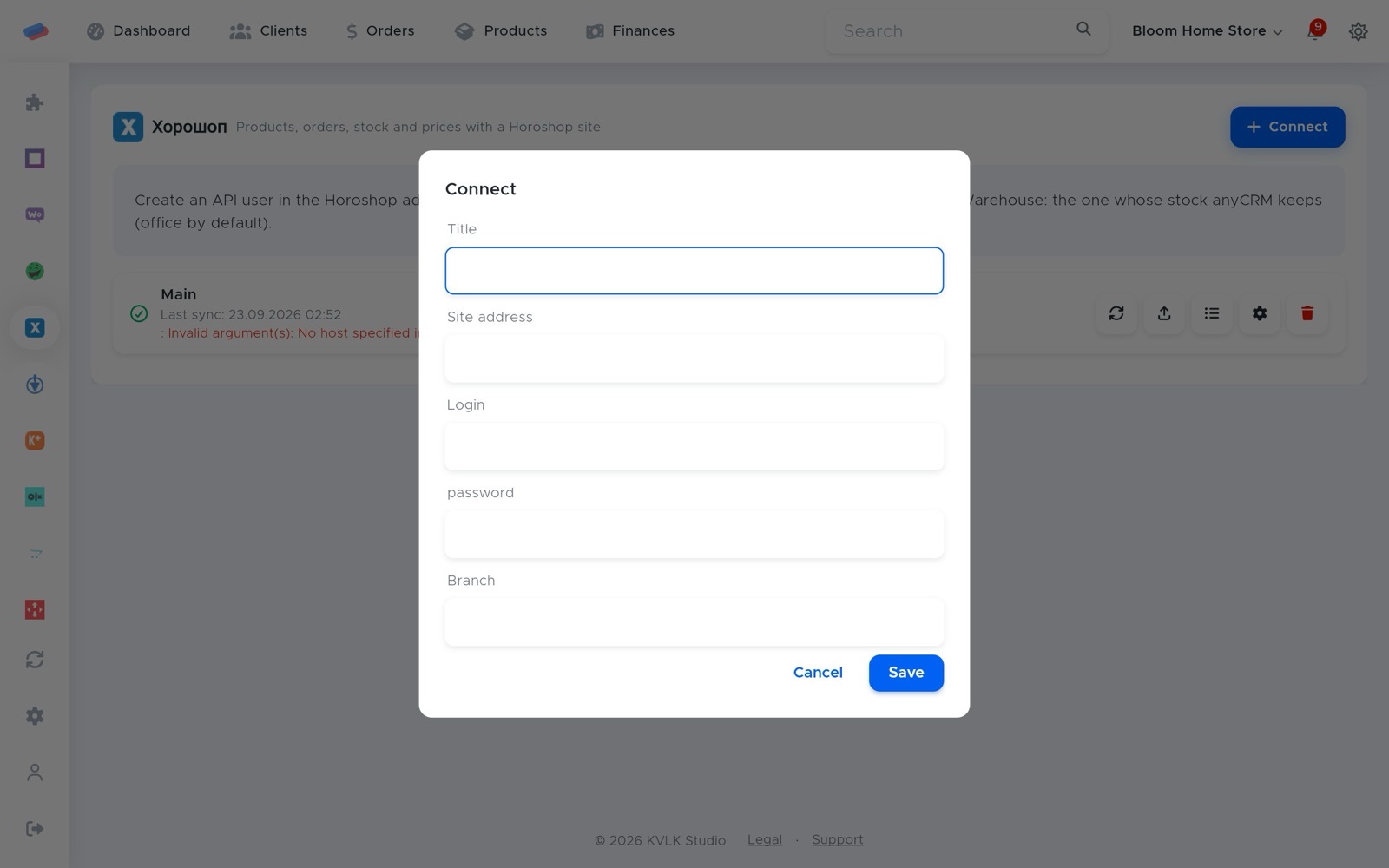
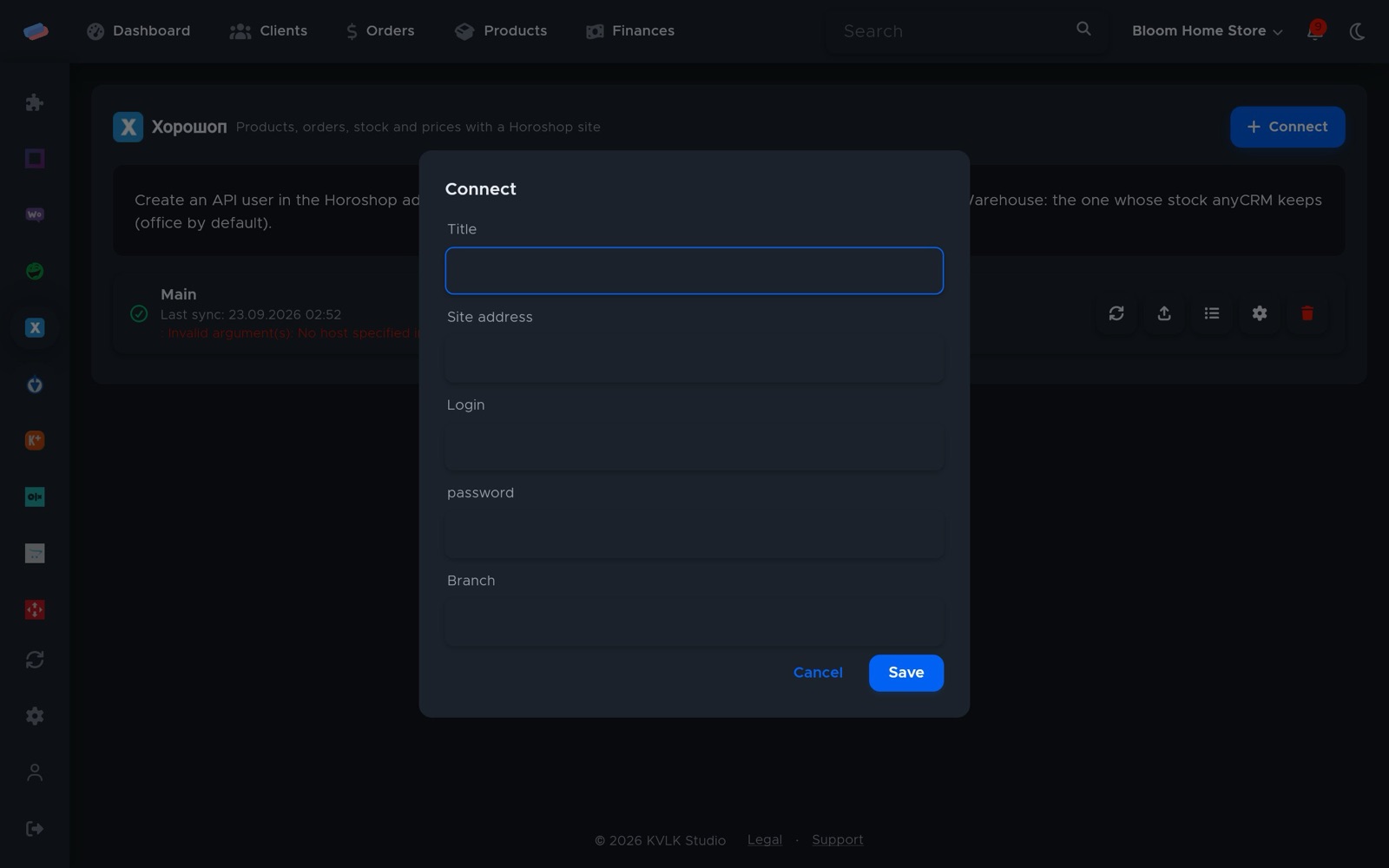
- Go to the module’s page in the side panel and press Connect.
- Fill in the fields and press Save:
- Title — how the account is labelled in anyCRM (optional)
- Site address
- Login
- Password
- Warehouse (optional)
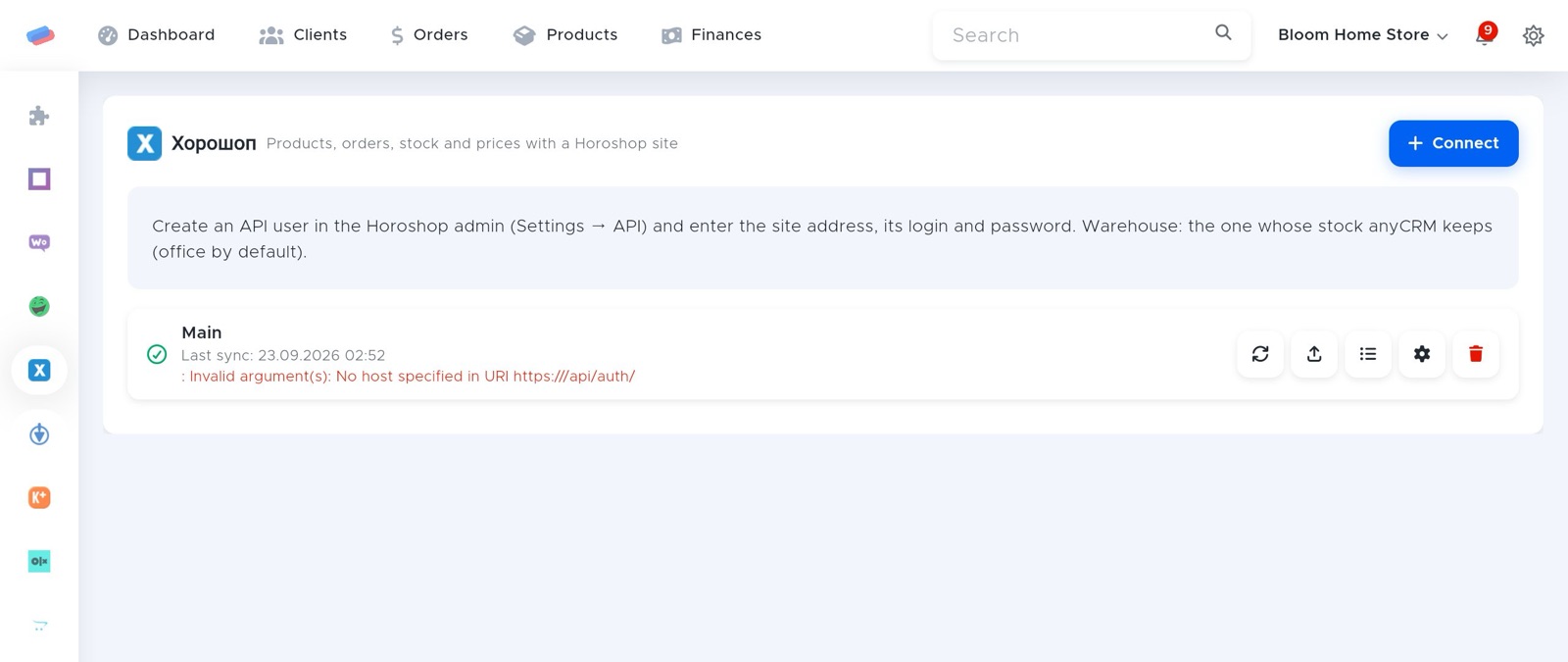
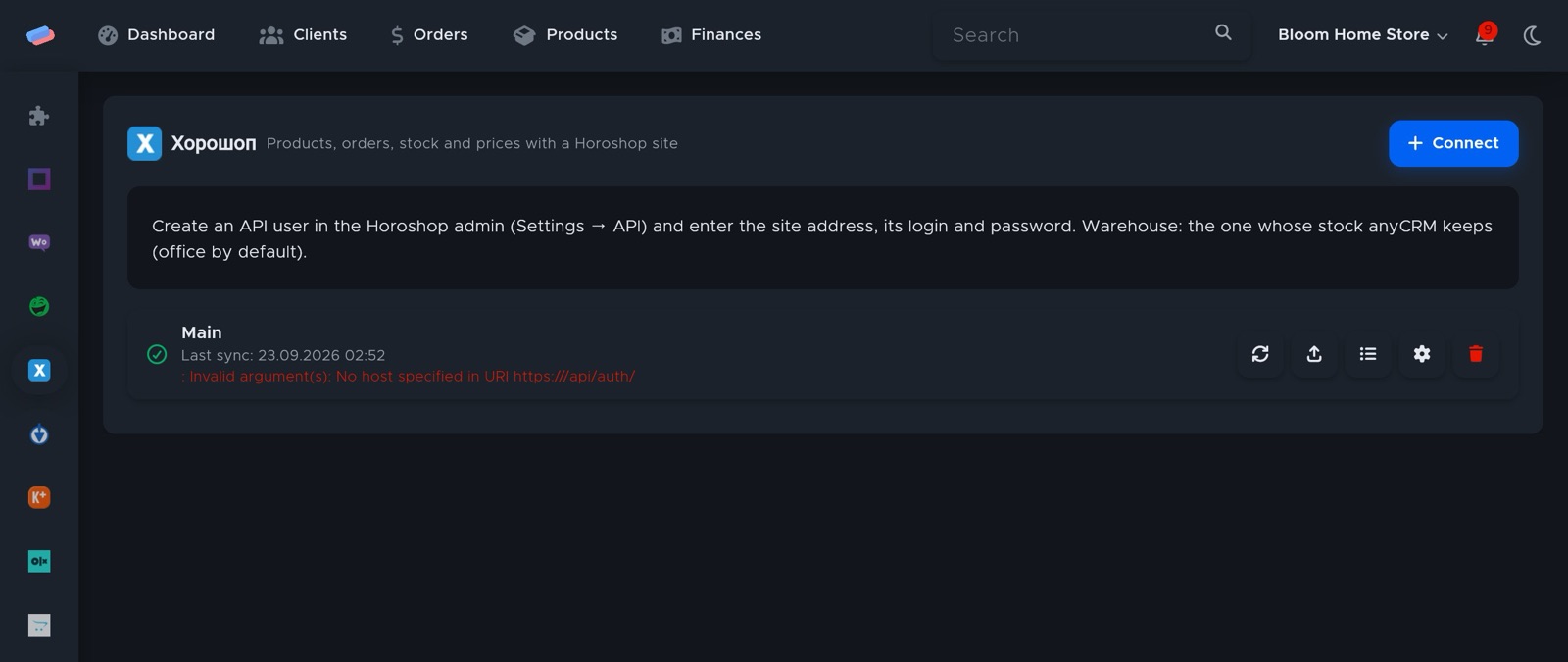
- The account appears in the list with a green tick. An error, if any, shows in red under its name.
After connecting
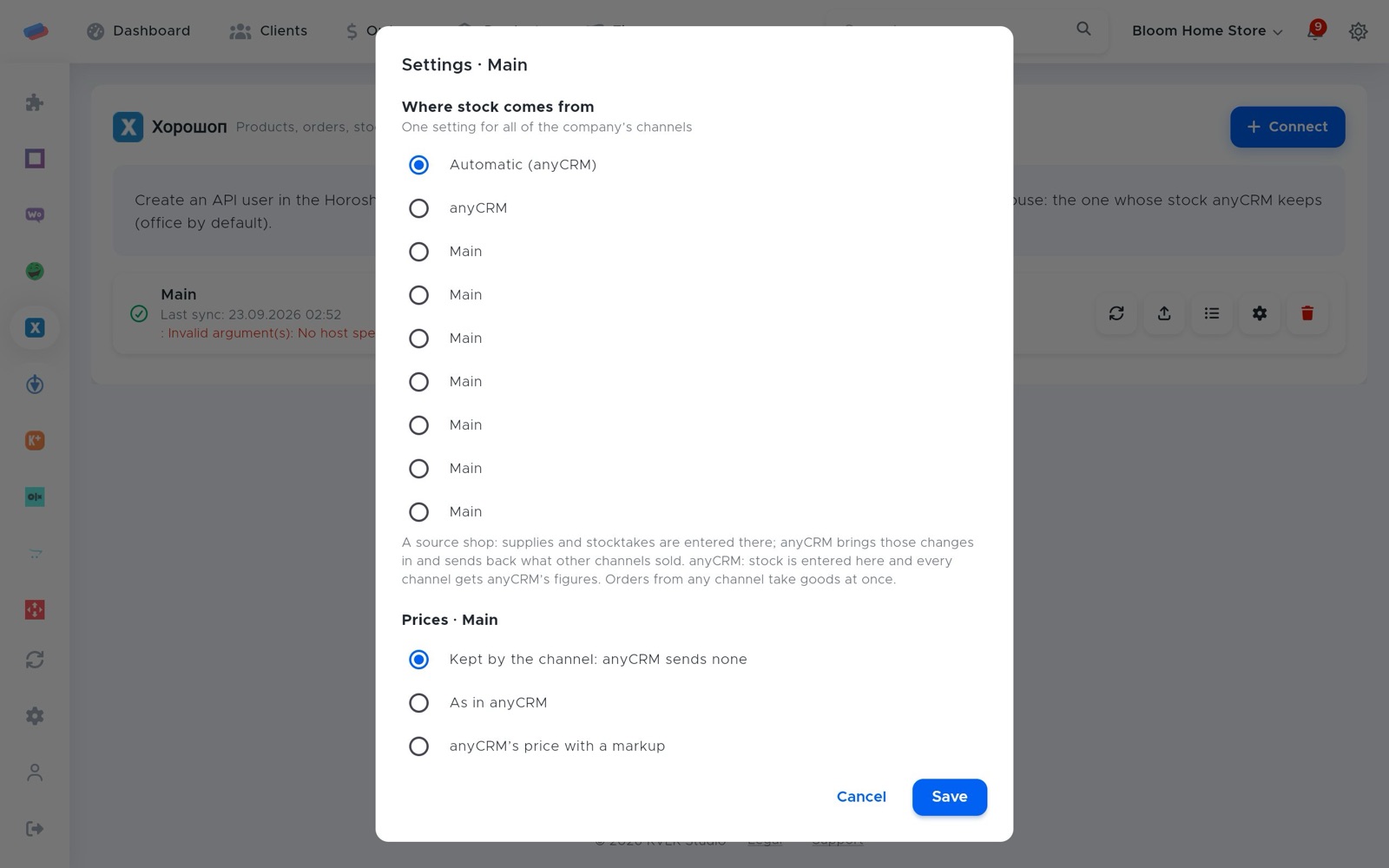
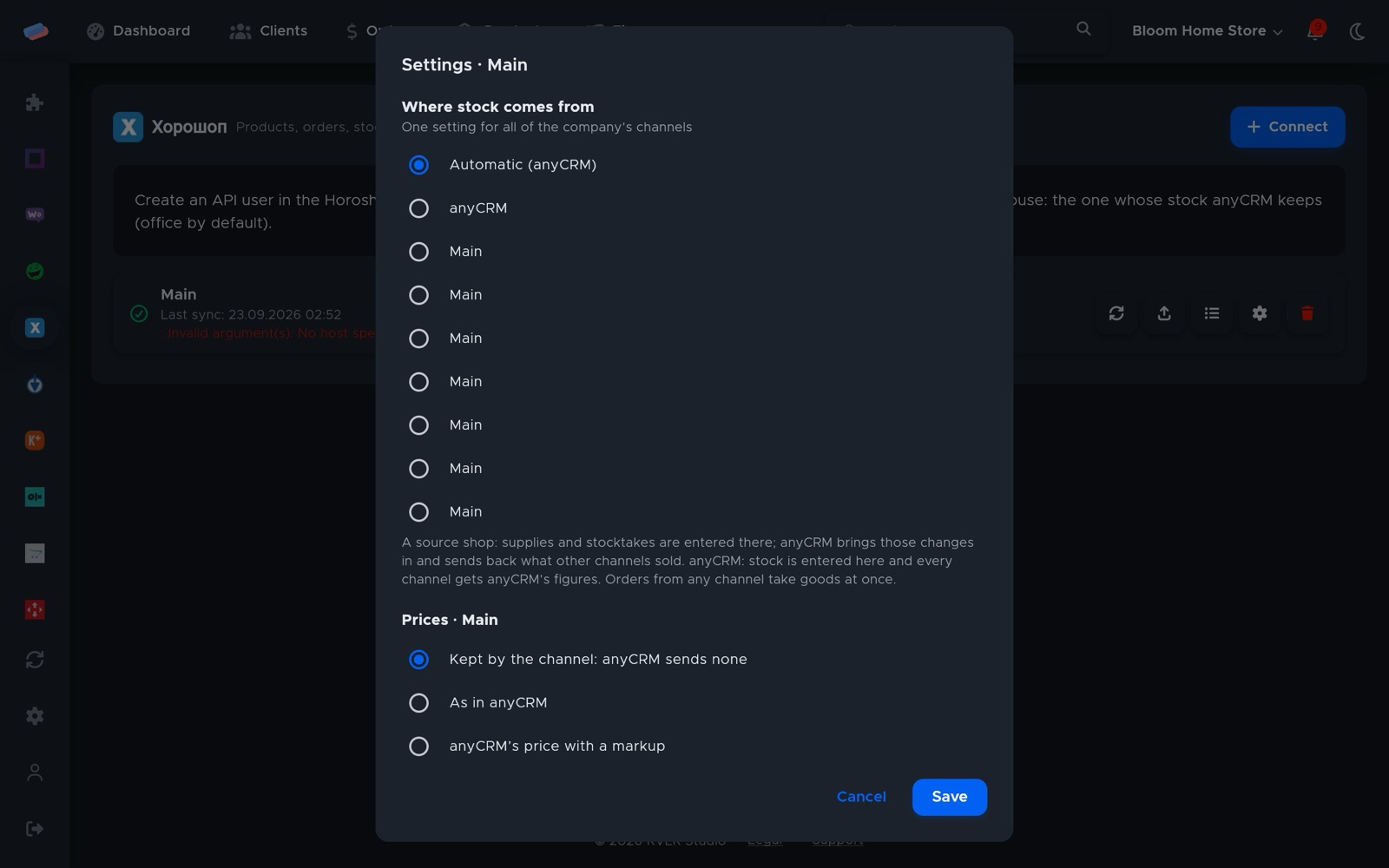
- Press ⚙ next to the account to choose where stock comes from (anyCRM or a source shop), the price rule (as in anyCRM, with a markup, or kept by the channel), rounding, currency and safety stock.
- The ⟳ button syncs right away; the sync log shows what changed.
Good to know
- Warehouse is the name of the warehouse whose stock anyCRM keeps (office by default).
Can’t get it connected? Write to us and we’ll help.