

 monobank statement
- Price
- 50 UAH/mo
- For
- services, food service, shops
- Required modules
- Finances
What it does
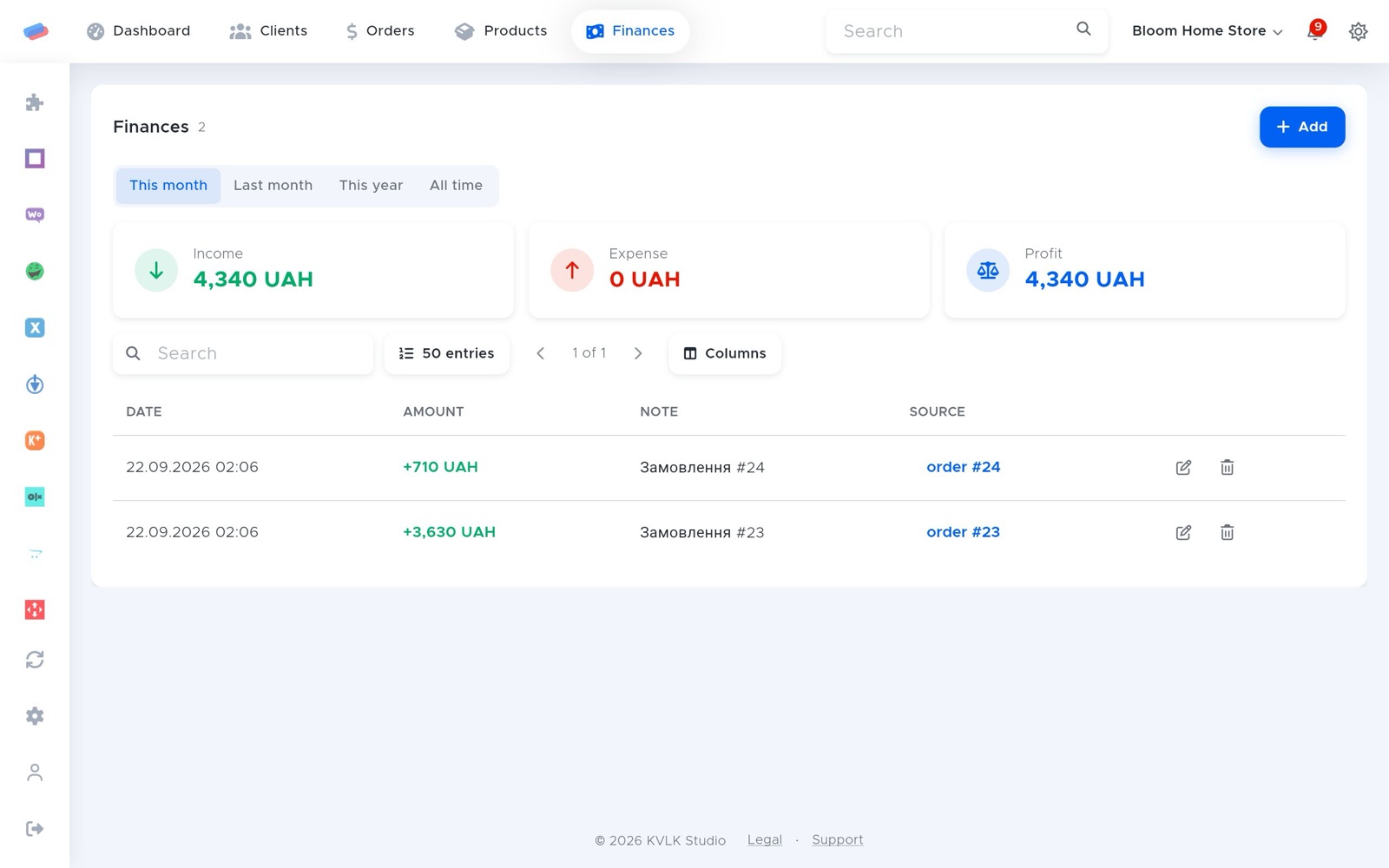
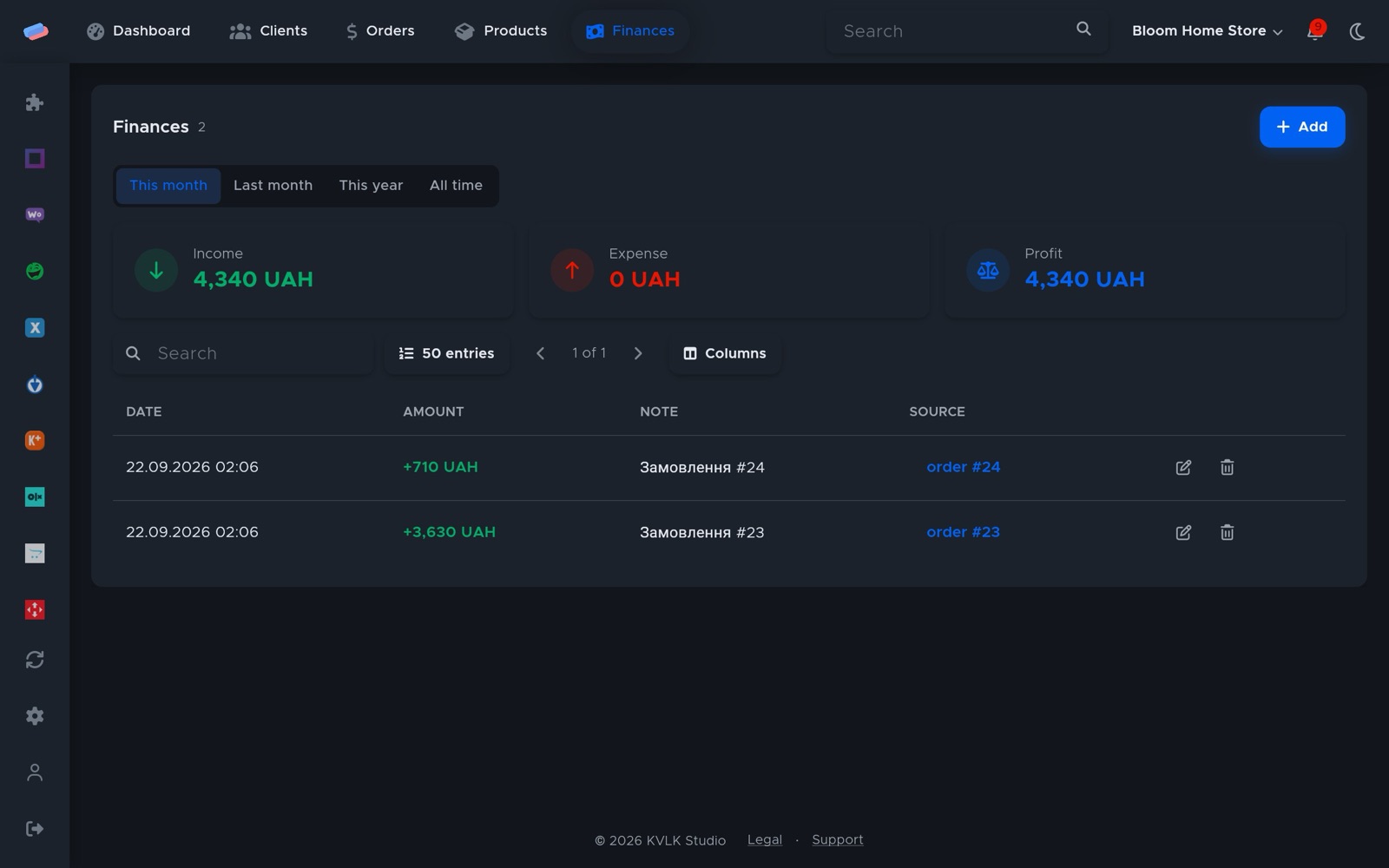
Your monobank sole-trader account statement lands in Finances on its own: no typing in income, and the income book and single tax add up by themselves.
What you need
- A monobank sole-trader account.
Where to get the keys
- Open api.monobank.ua.
- Confirm the sign-in in the monobank app.
- Copy the personal API token.
Connecting in anyCRM
- Open Modules in anyCRM, find “monobank statement” and press Enable.
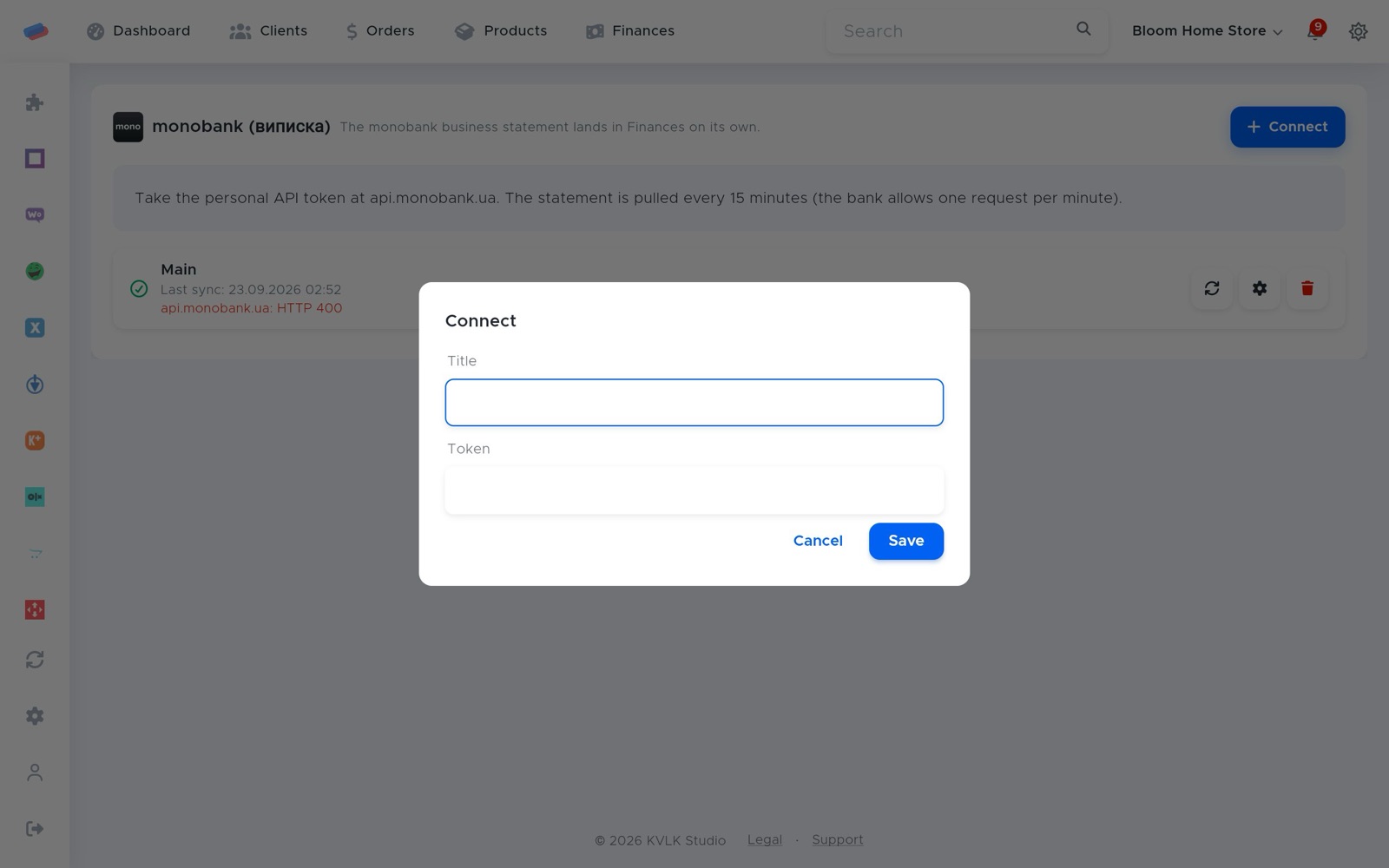
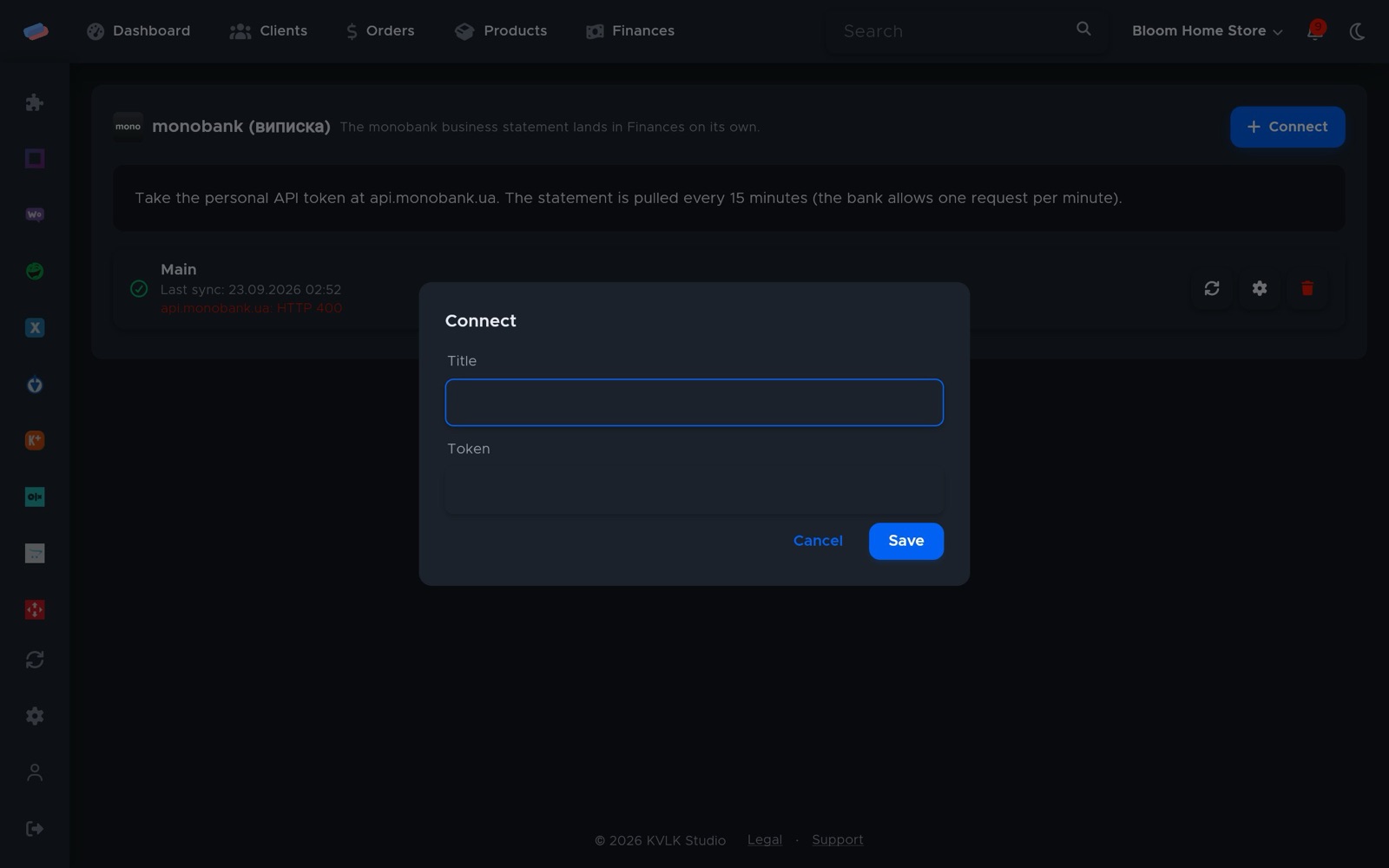
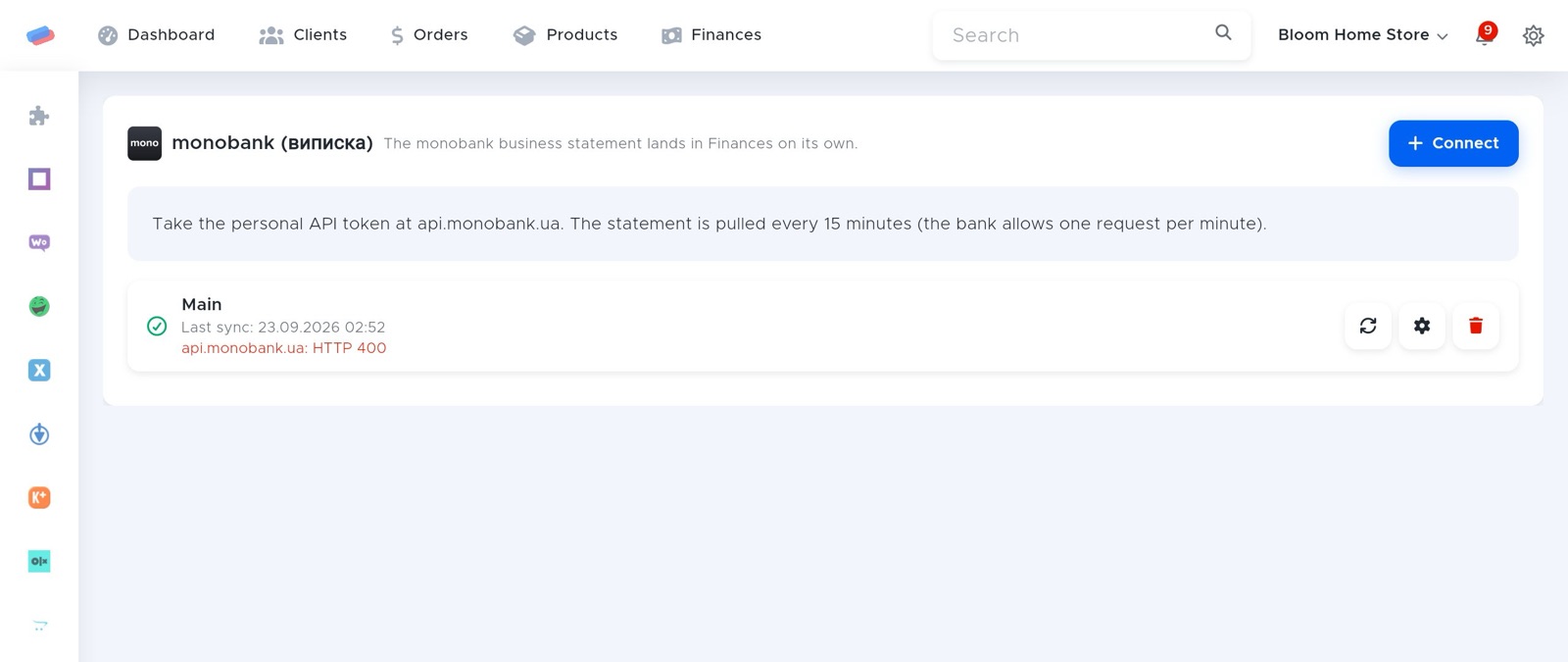
- Go to the module’s page in the side panel and press Connect.
- Fill in the fields and press Save:
- Title — how the account is labelled in anyCRM (optional)
- Token
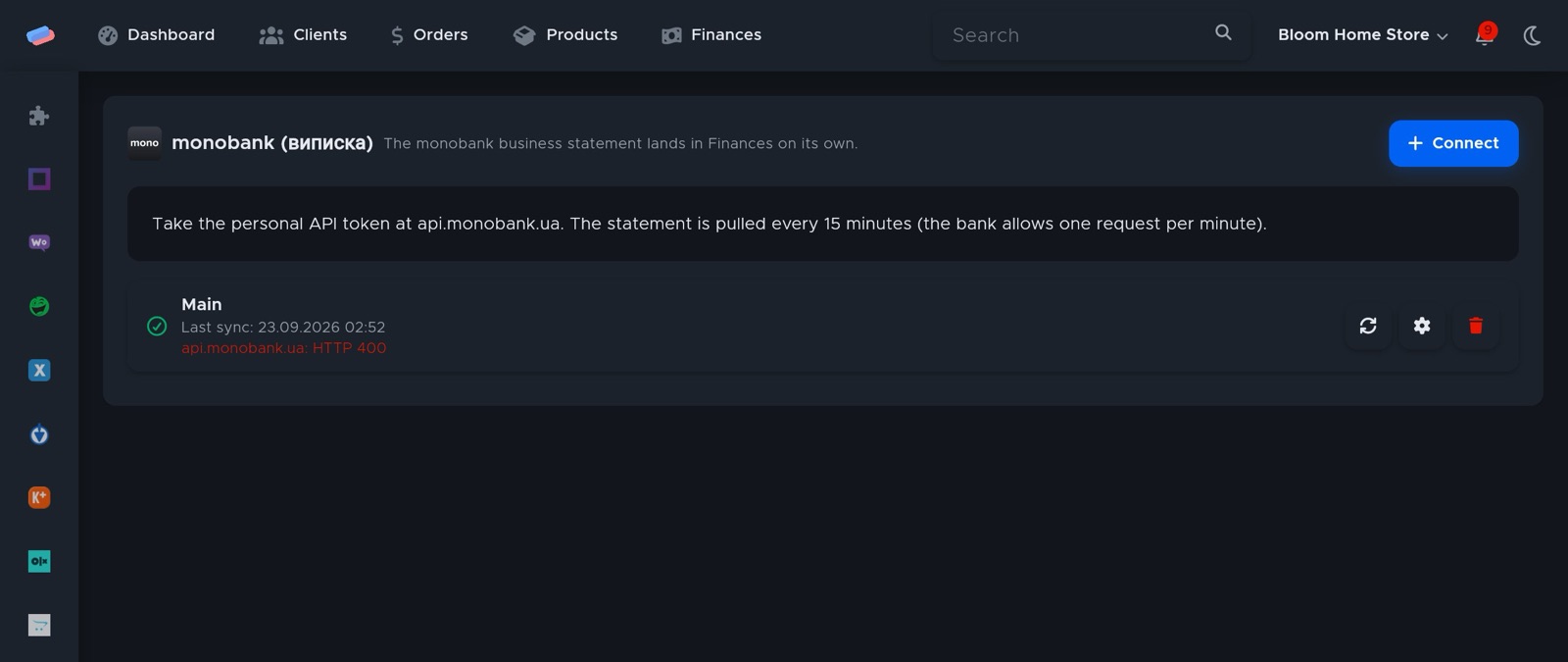
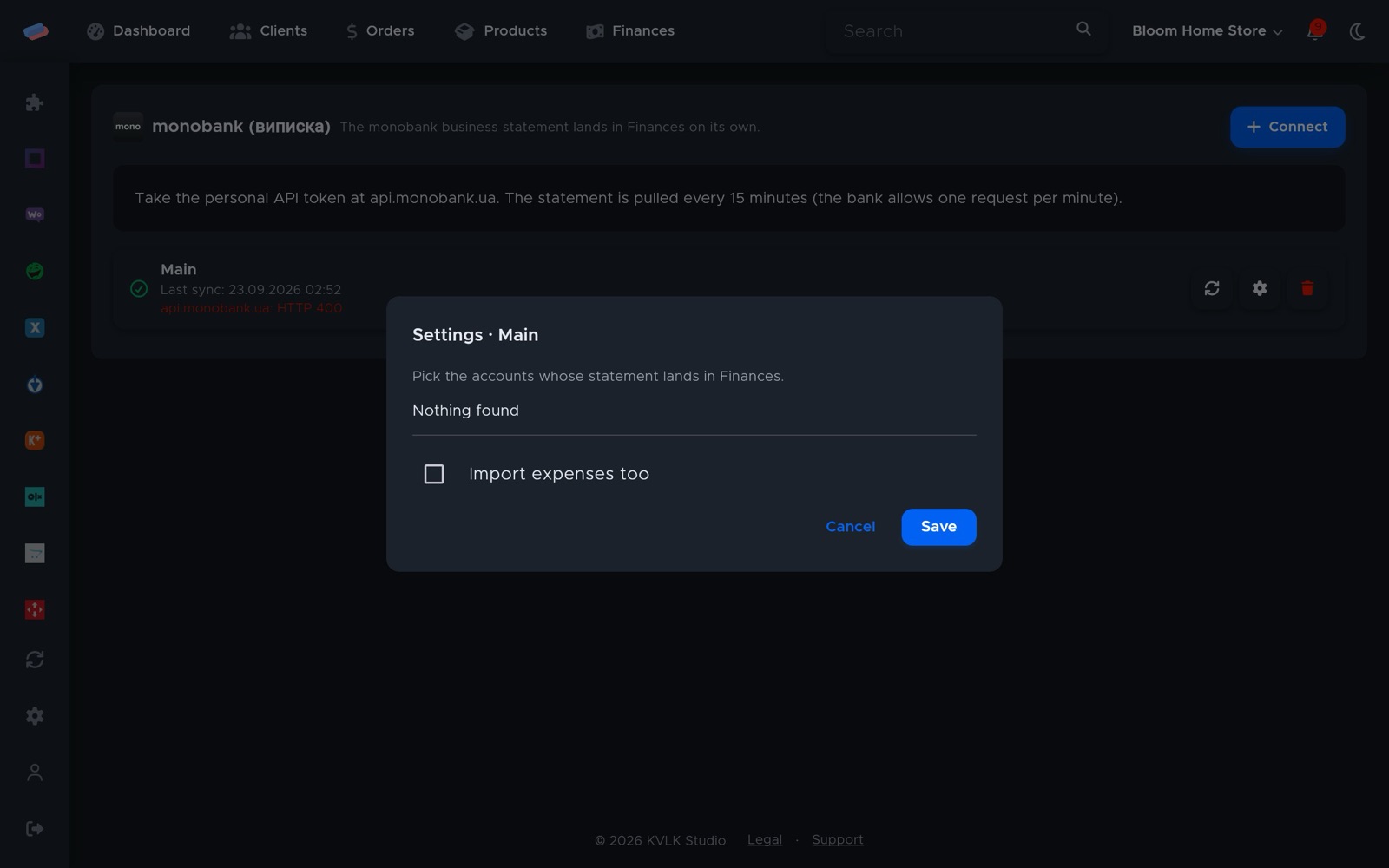
- The account appears in the list with a green tick. An error, if any, shows in red under its name.
After connecting
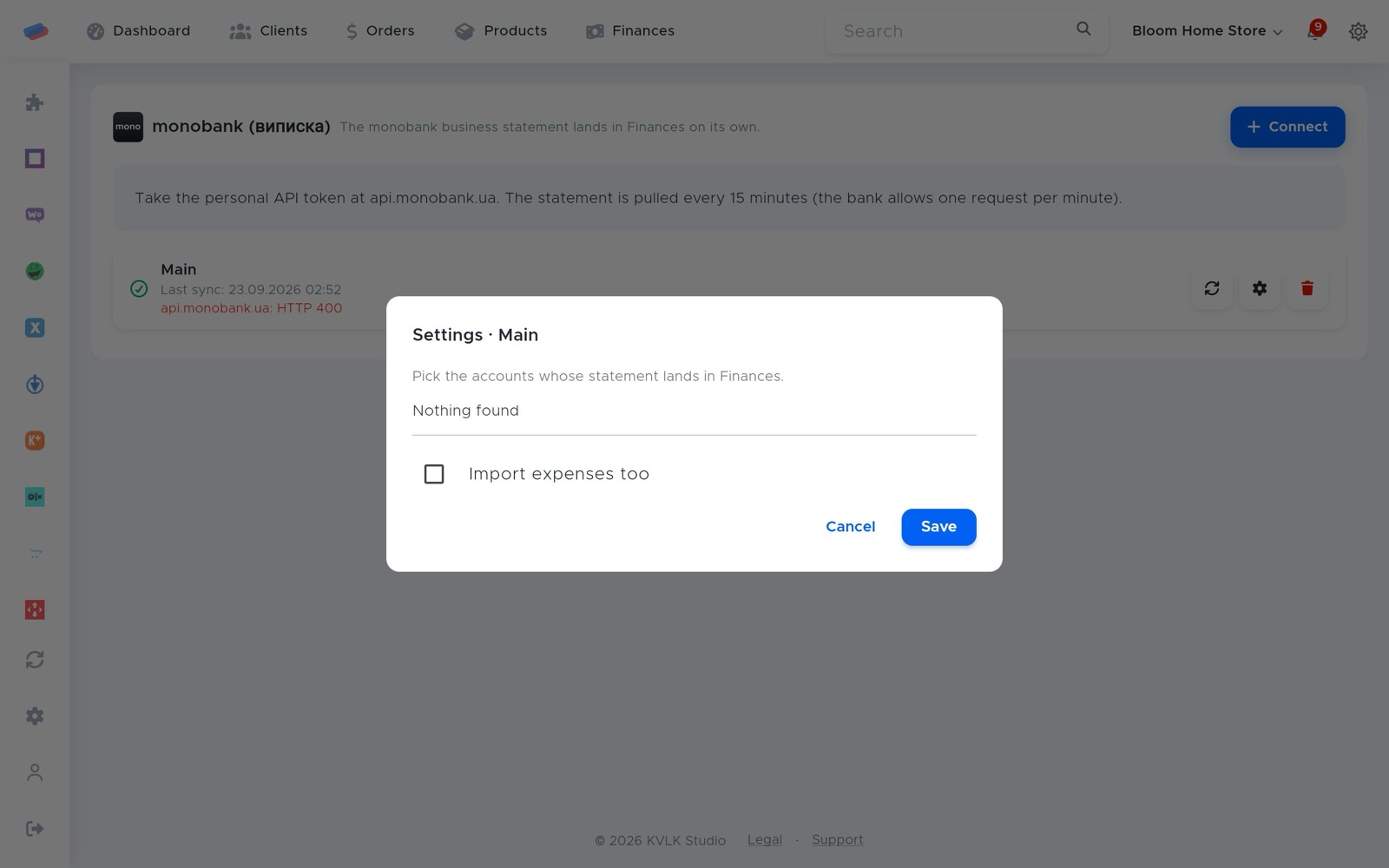
- Press ⚙ next to the account and tick the accounts whose statement lands in Finances.
- Optionally switch on “Import expenses too” so debits become Finances records as well.
Good to know
- The statement refreshes every 15 minutes: the bank allows one request a minute.
Can’t get it connected? Write to us and we’ll help.