

 Phonet
- Price
- 60 UAH/mo
- For
- services, food service, shops
- Required modules
- Clients
What it does
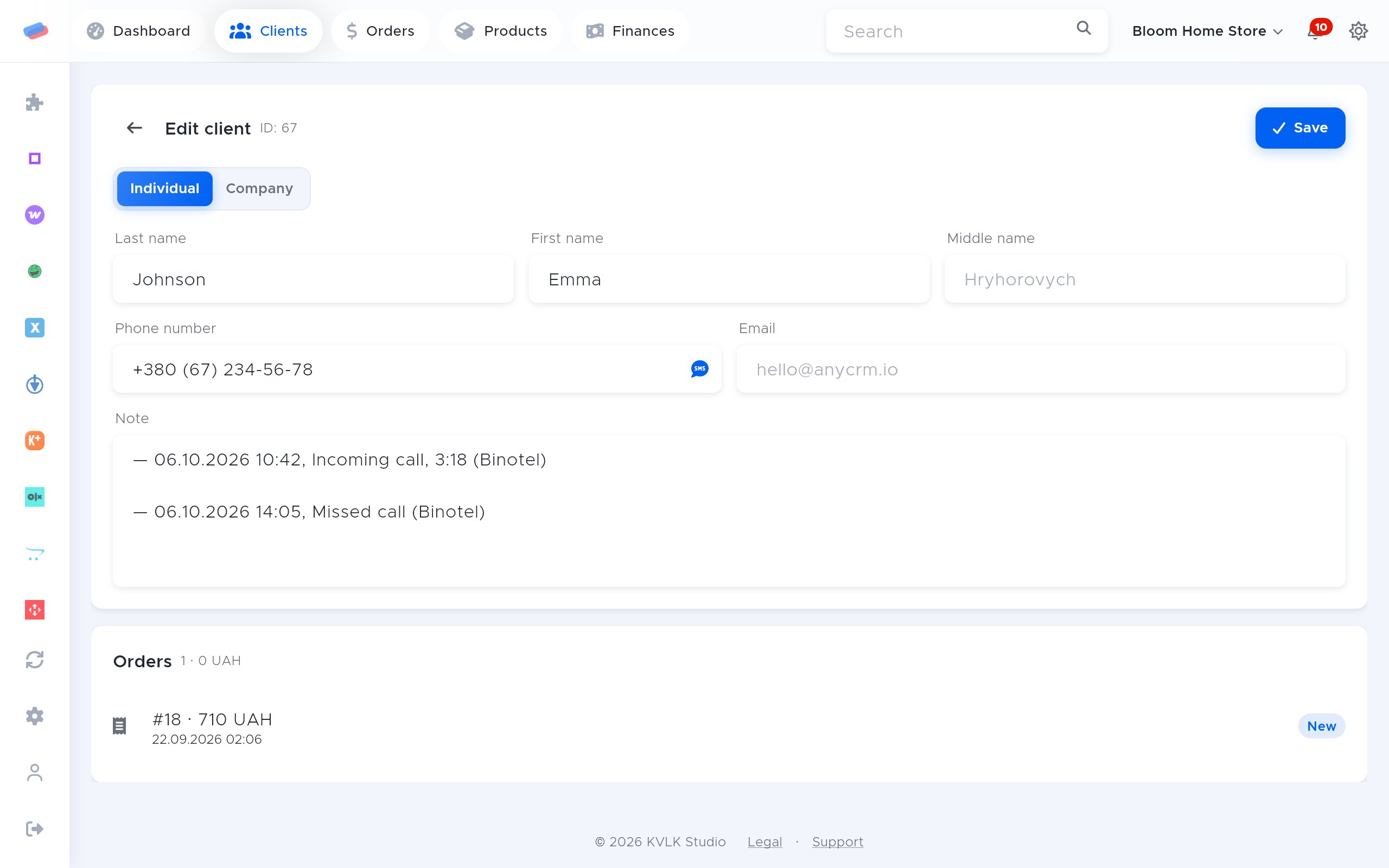
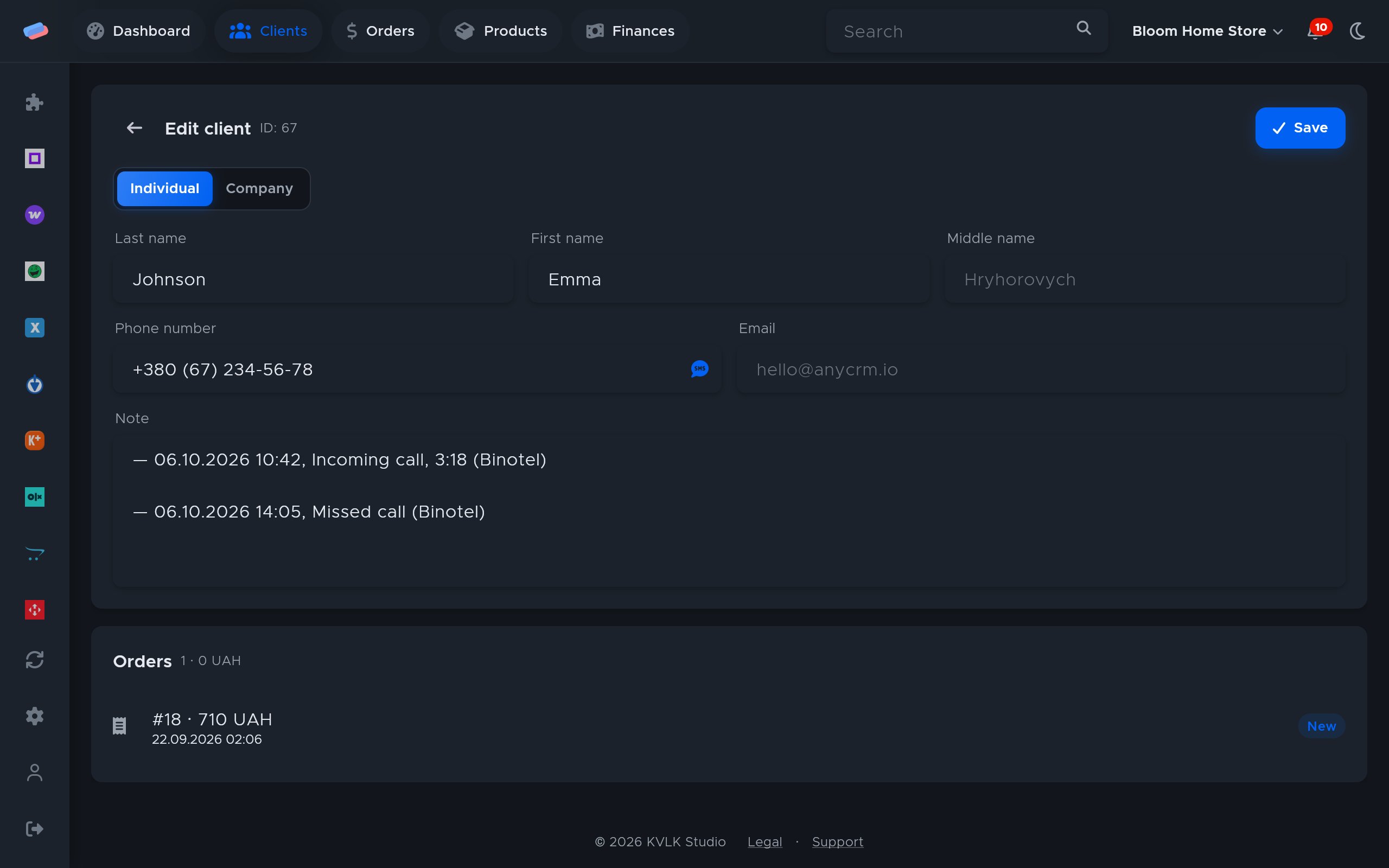
Every Phonet call lands on the client card with a link to the recording. A new number becomes a new client.
What you need
- A Phonet account with admin rights.
Where to get the keys
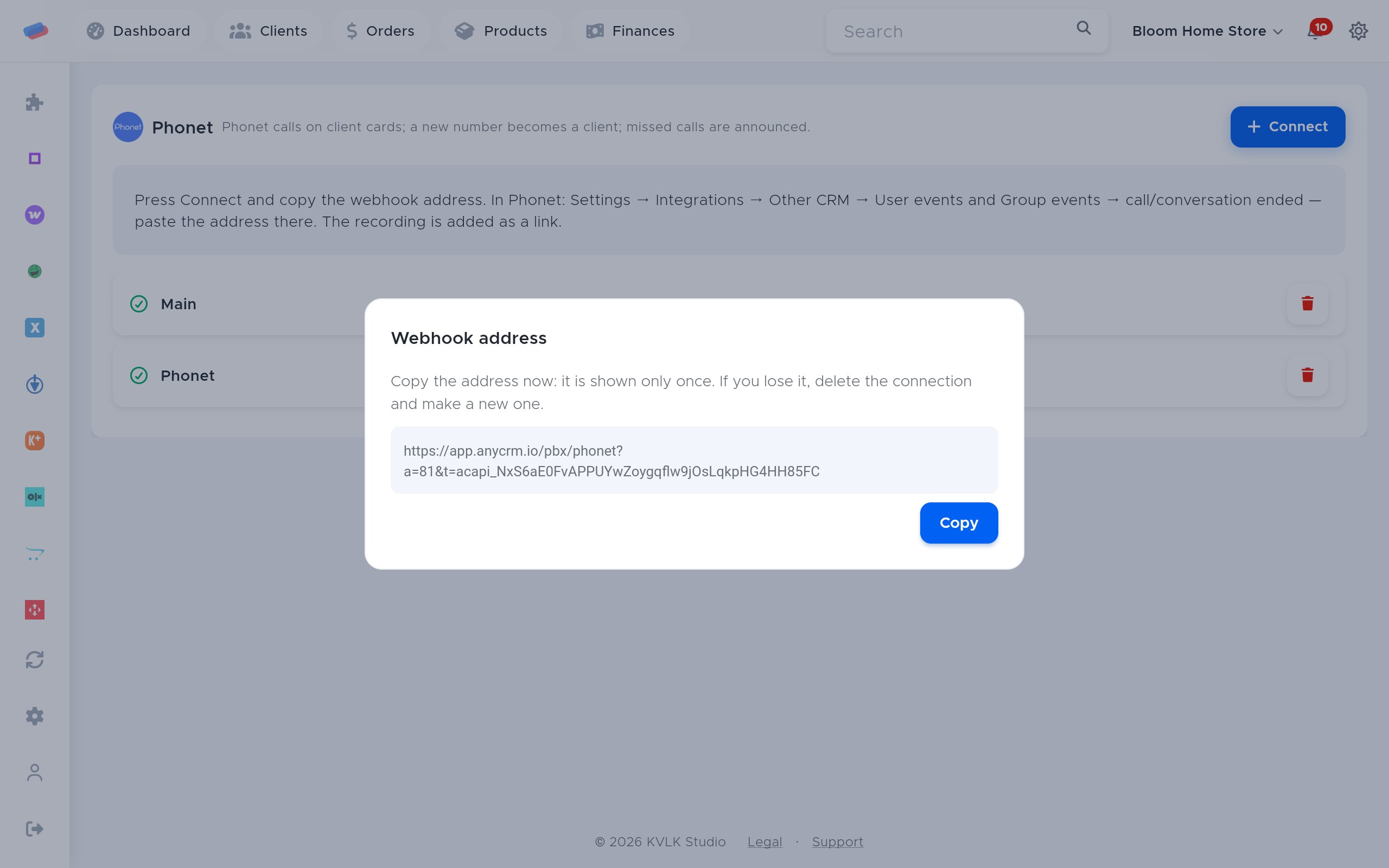
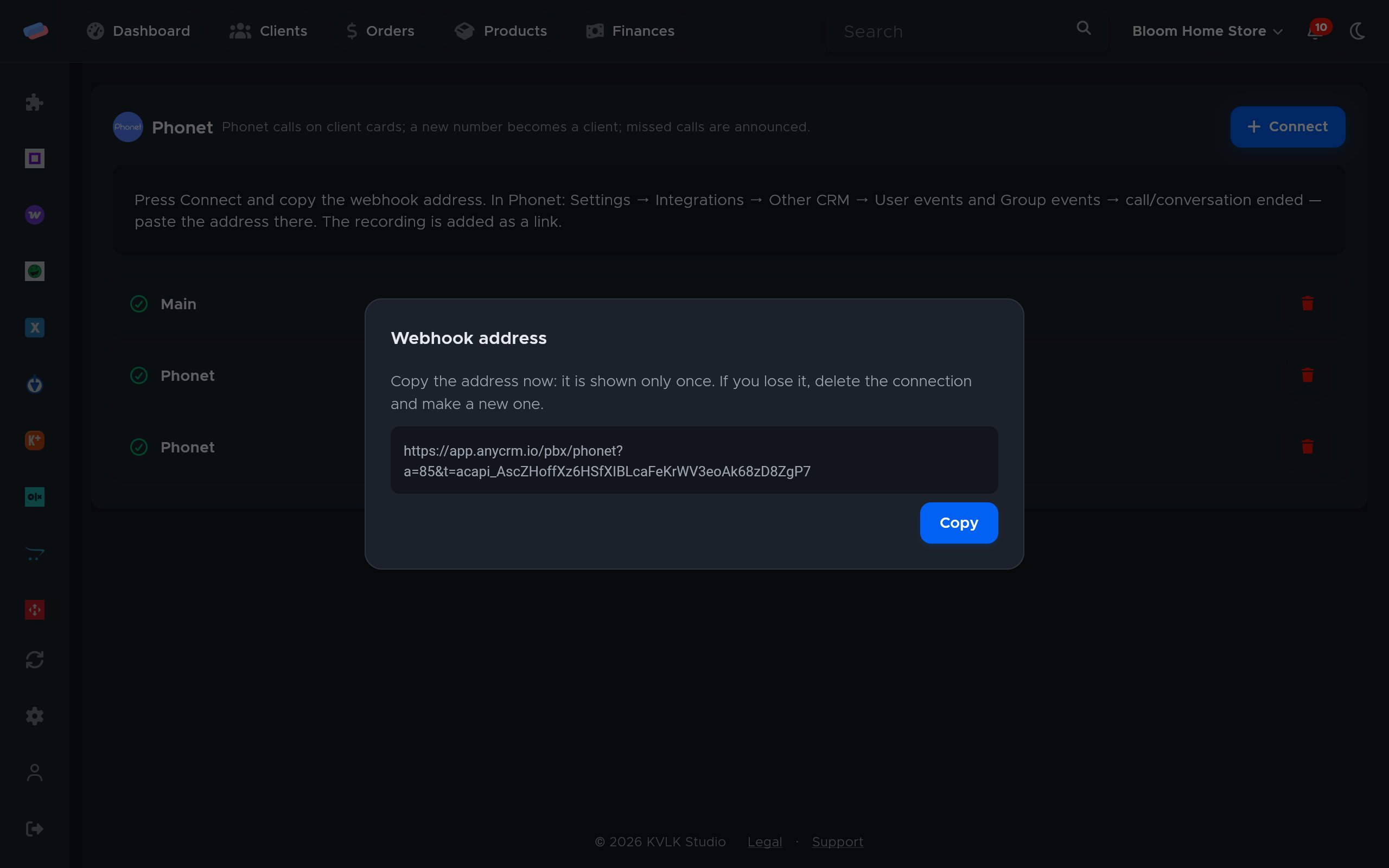
- In anyCRM, on the module page, press Connect, copy the webhook address and press Save.
- In Phonet: Settings → Integrations → Other CRM.
- Under User events and Group events, paste the webhook address for conversation ended and call ended.
Connecting in anyCRM
- Open Modules in anyCRM, find “Phonet” and press Enable.
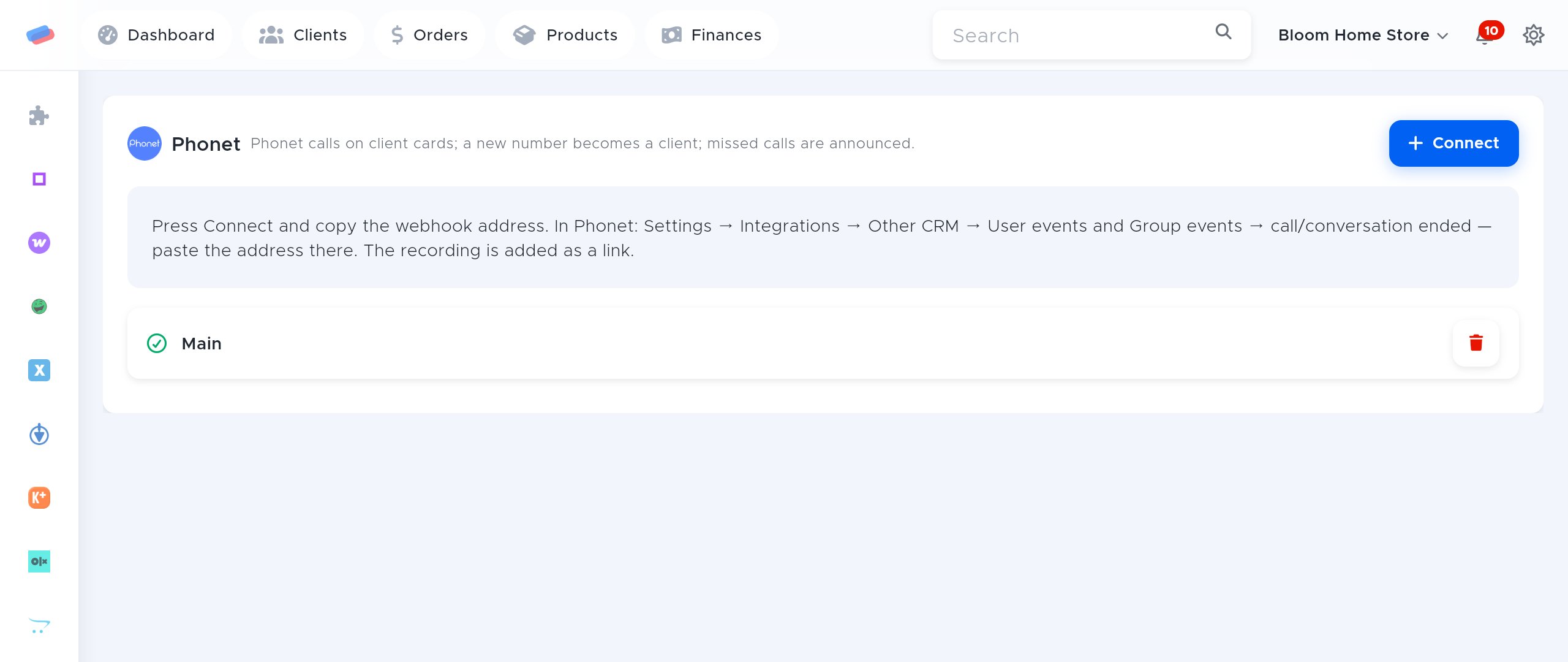
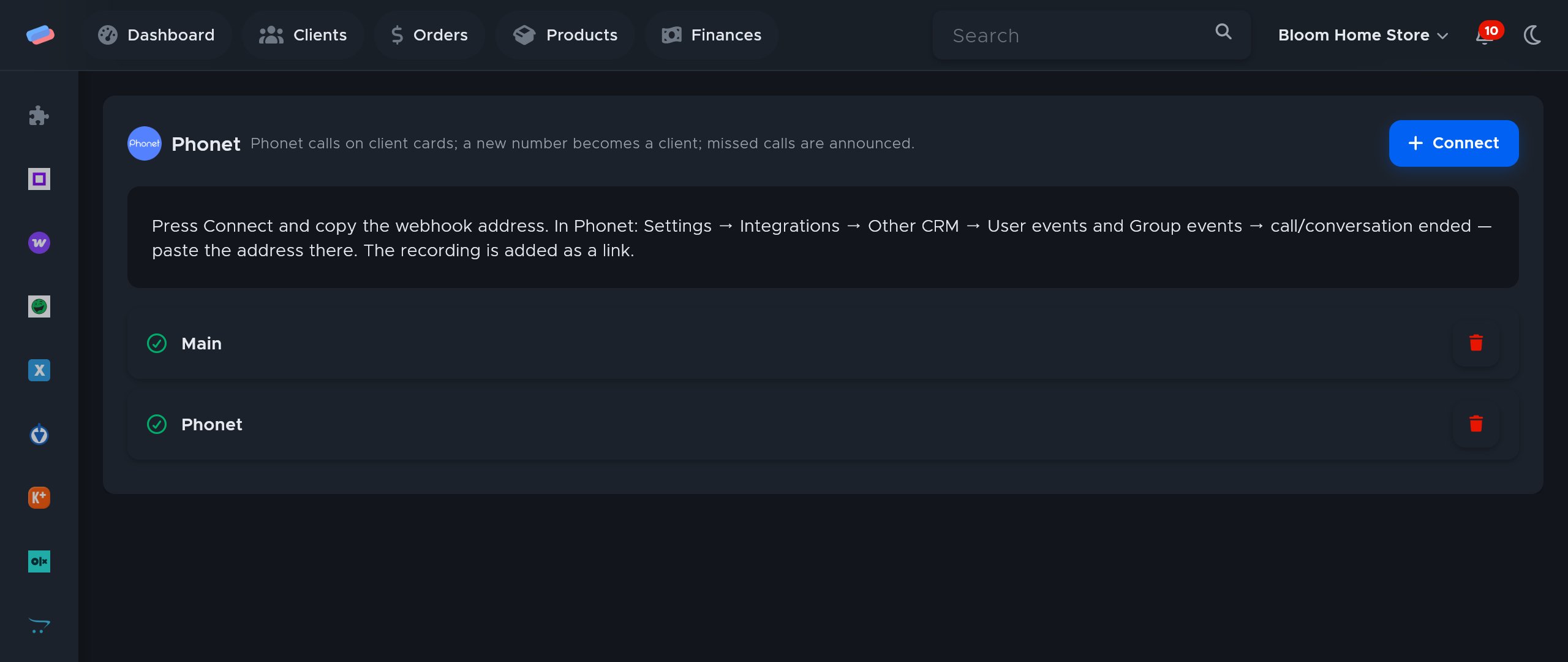
- Go to the module’s page in the side panel and press Connect.
- The account appears in the list with a green tick. An error, if any, shows in red under its name.
After connecting
- Make a test call: within a minute it shows on the client card as a line with the date, length and recording link.
- A new number becomes a new client, and a missed incoming call sends a “Missed call” notification, which can be switched off in notification settings.
Good to know
- The webhook address is shown only once. Lost it? Delete the connection and make a new one: the old address stops working at once.
- Events the PBX sends again are not duplicated on the card.
Can’t get it connected? Write to us and we’ll help.