
 Twilio
- Price
- 50 UAH/mo
- For
- services, food service, shops
What it does
SMS through Twilio — for customers outside Ukraine.
What you need
- A Twilio account with a number or alphanumeric sender ID.
Where to get the keys
- Open the Twilio console.
- Copy the Account SID and Auth Token.
Connecting in anyCRM
- Open Modules in anyCRM, find “Twilio” and press Enable.
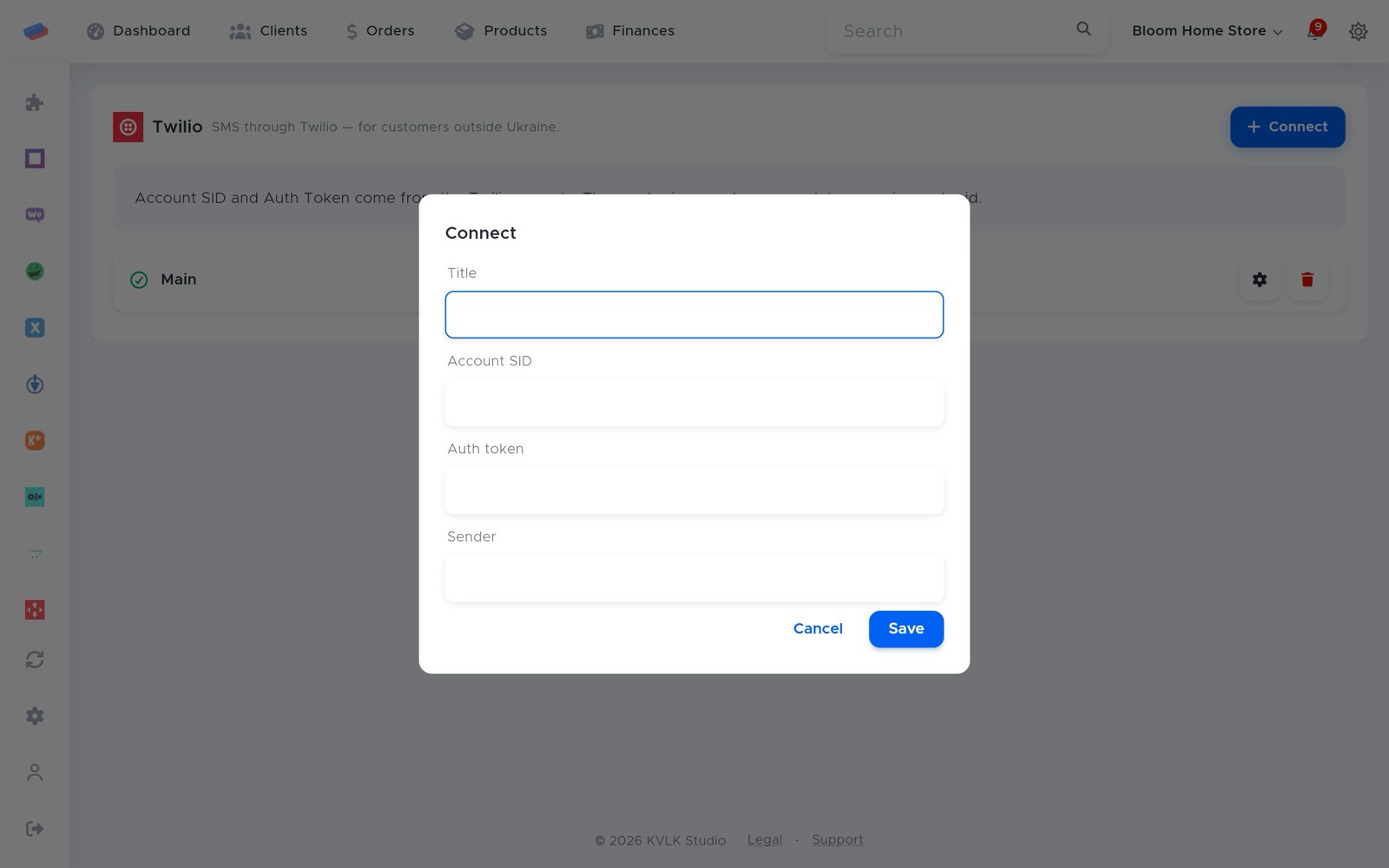
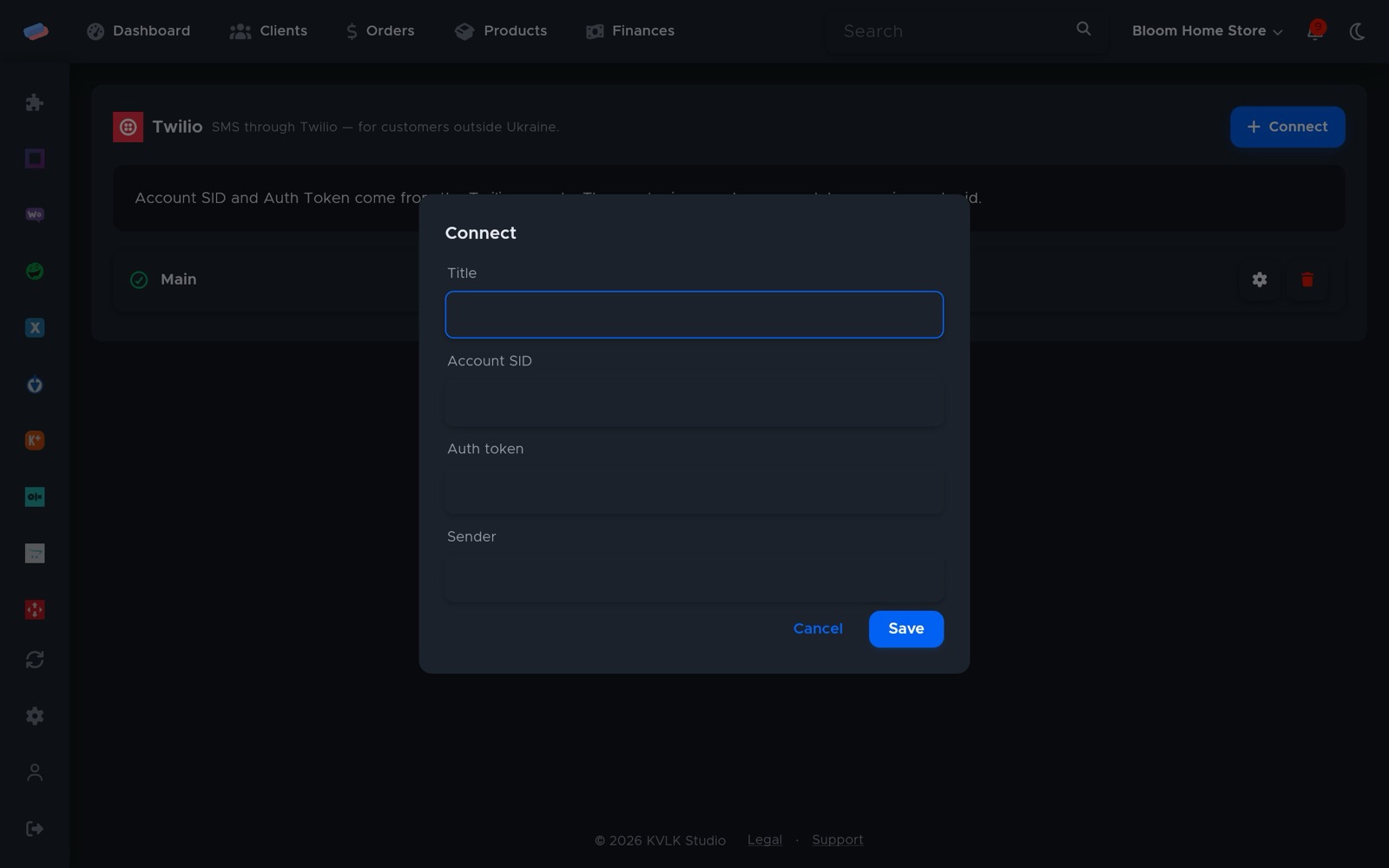
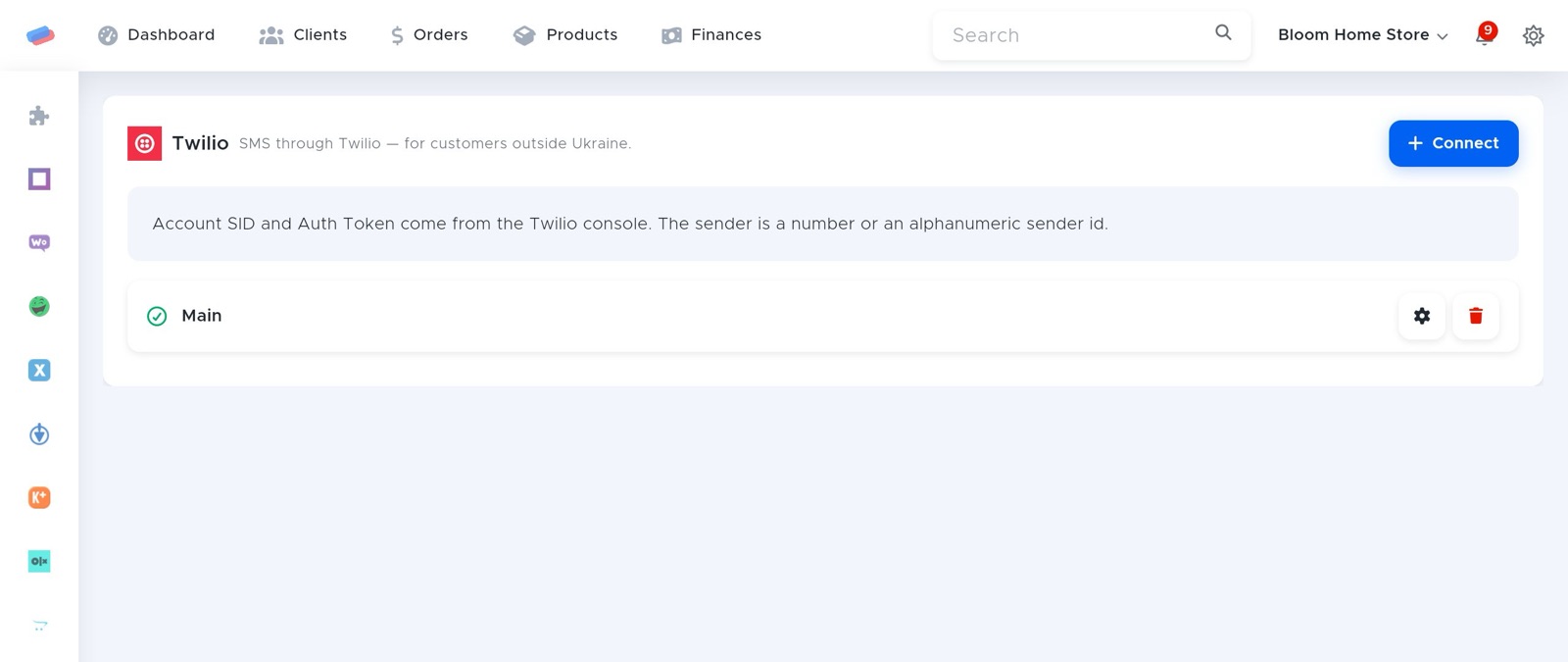
- Go to the module’s page in the side panel and press Connect.
- Fill in the fields and press Save:
- Title — how the account is labelled in anyCRM (optional)
- Account SID
- Auth token
- Sender (optional)
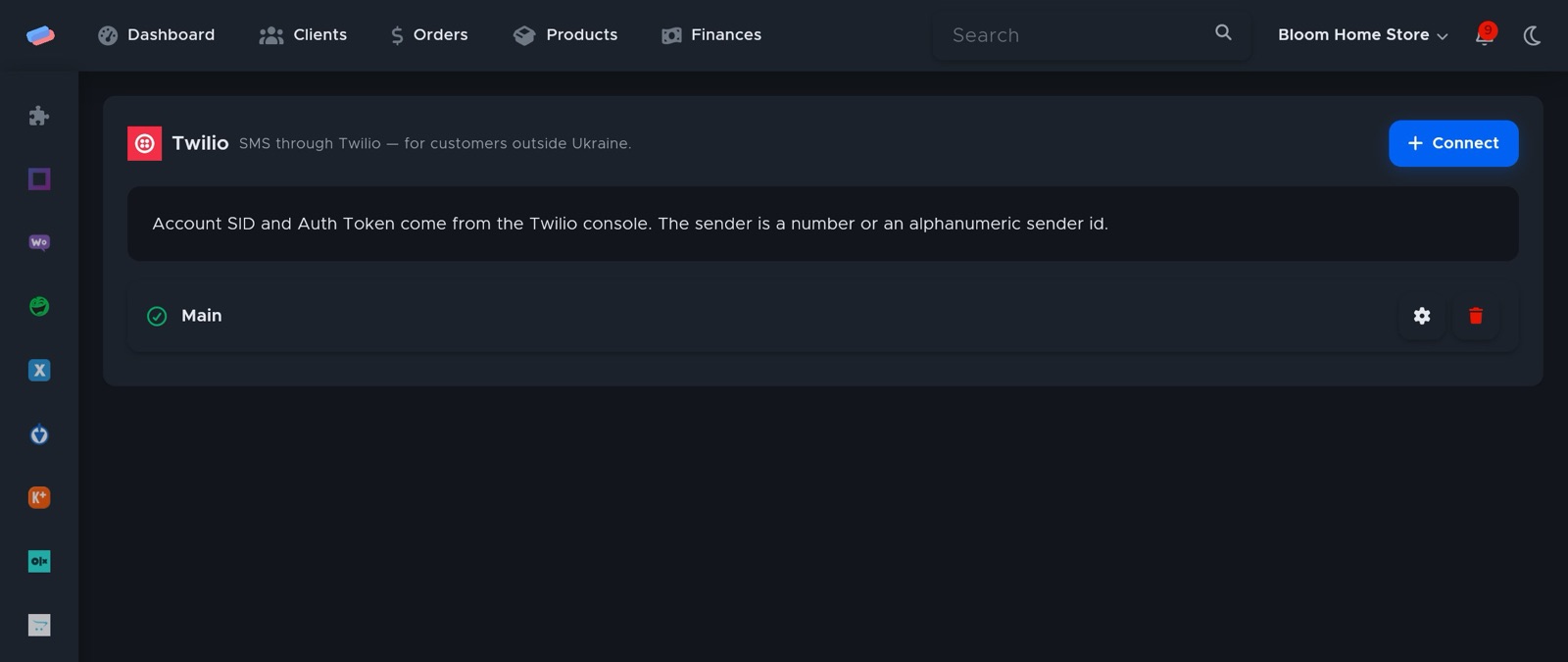
- The account appears in the list with a green tick. An error, if any, shows in red under its name.
After connecting
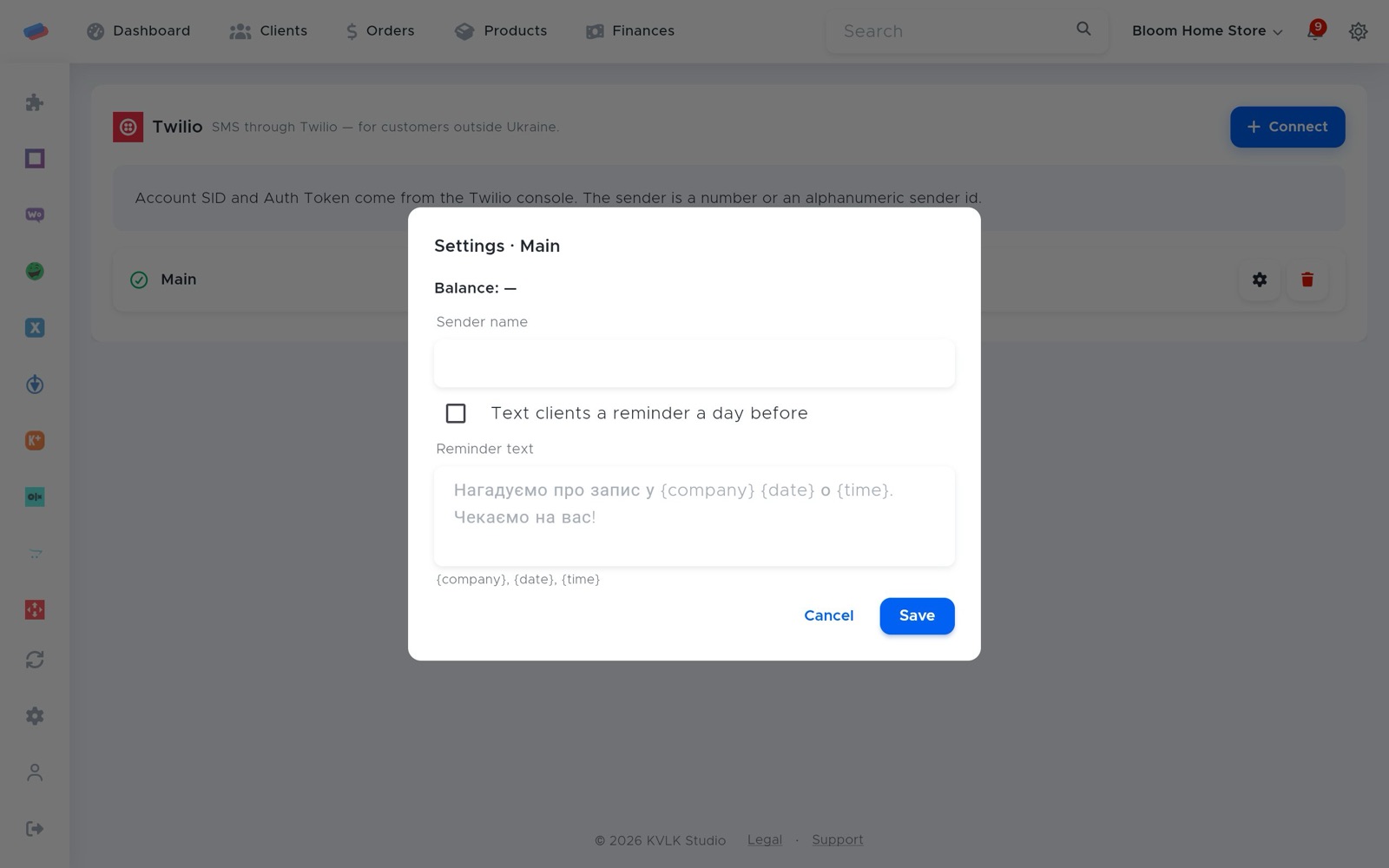
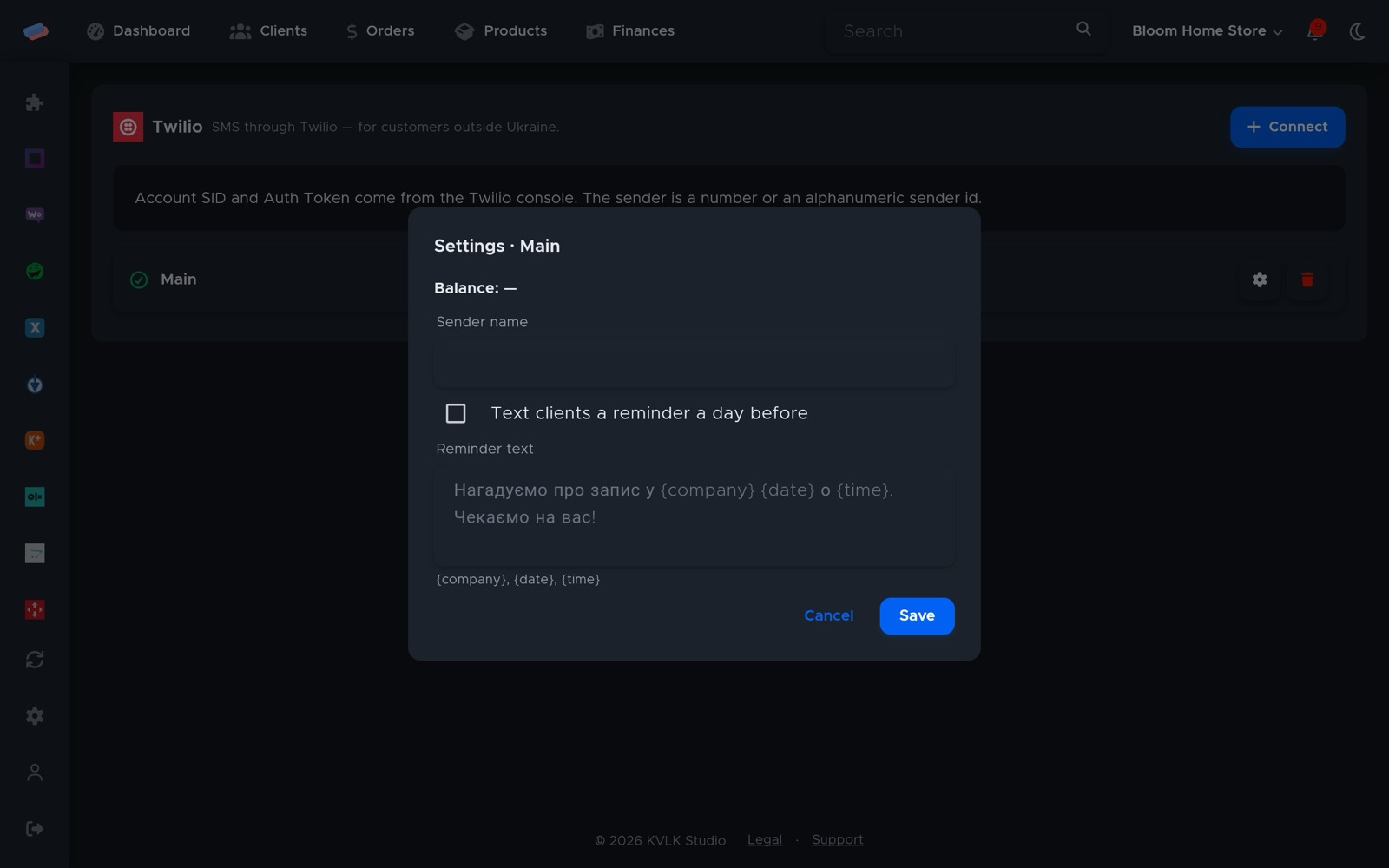
- Press ⚙ next to the account: it shows the balance, sets the sender name (alpha name, up to 11 characters) and switches on visit reminders a day ahead.
- The reminder text takes {company}, {date} and {time}.
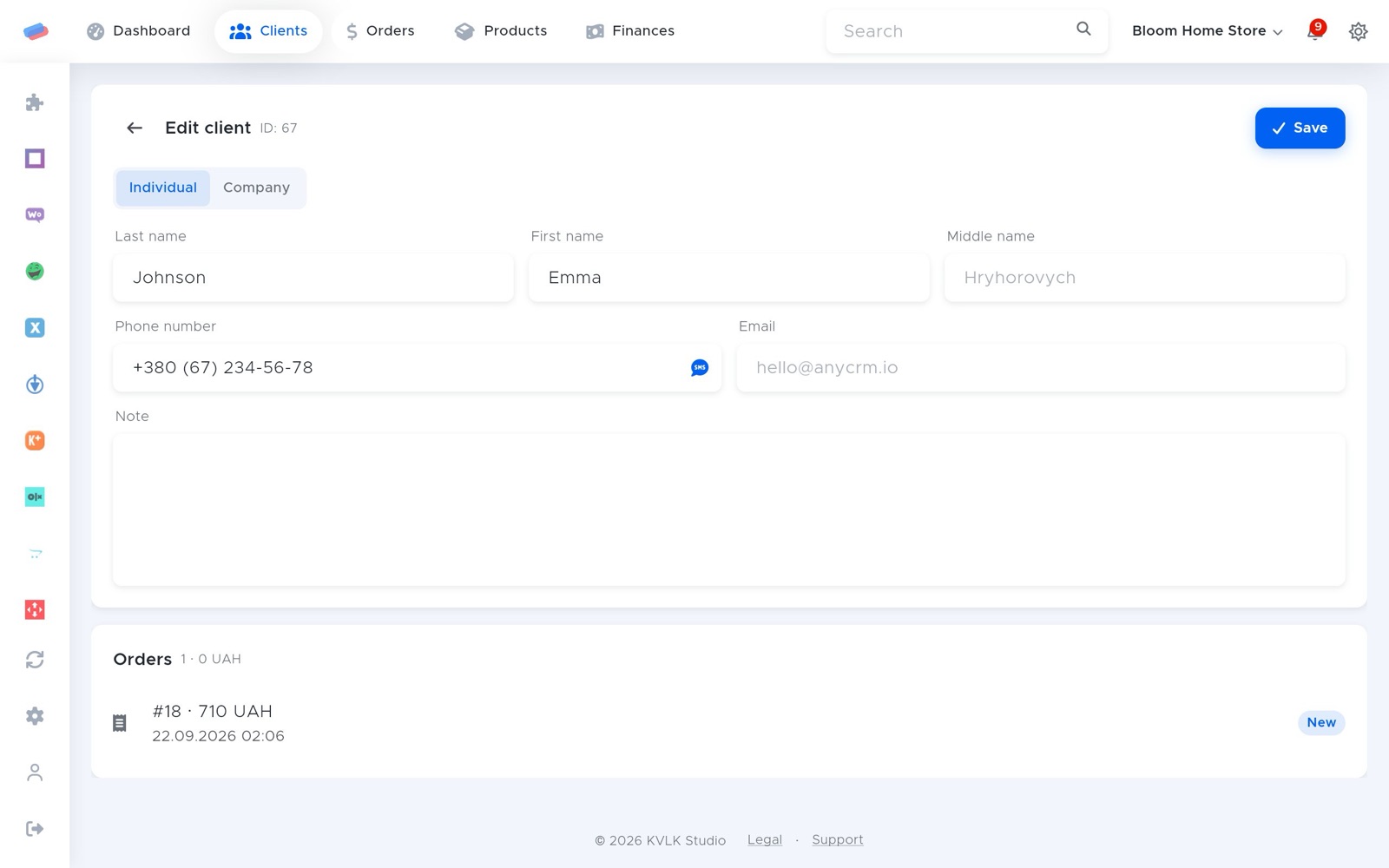
- A single SMS to a client is sent from their card.
Good to know
- Sender is a number or an alphanumeric sender ID. Empty: the account’s number.
Can’t get it connected? Write to us and we’ll help.