

 Poster POS
- Price
- 100 UAH/mo
- For
- food service
- Required modules
- Menu, Orders
What it does
The menu comes from the Poster till, and orders from the web app and Telegram bot reach the till as online orders. When the cashier accepts or declines one, the status changes in anyCRM too.
What you need
- A Poster account with admin rights.
Where to get the keys
- Press Connect in anyCRM and a Poster sign-in opens. Sign in and allow anyCRM access to the venue.
- If no sign-in opens, anyCRM asks for a token: in Poster, open Access → Integrations → Personal integration and copy it.
- The location ID is needed only if the venue has several: Access → Venues.
Connecting in anyCRM
- Open Modules in anyCRM, find “Poster POS” and press Enable.
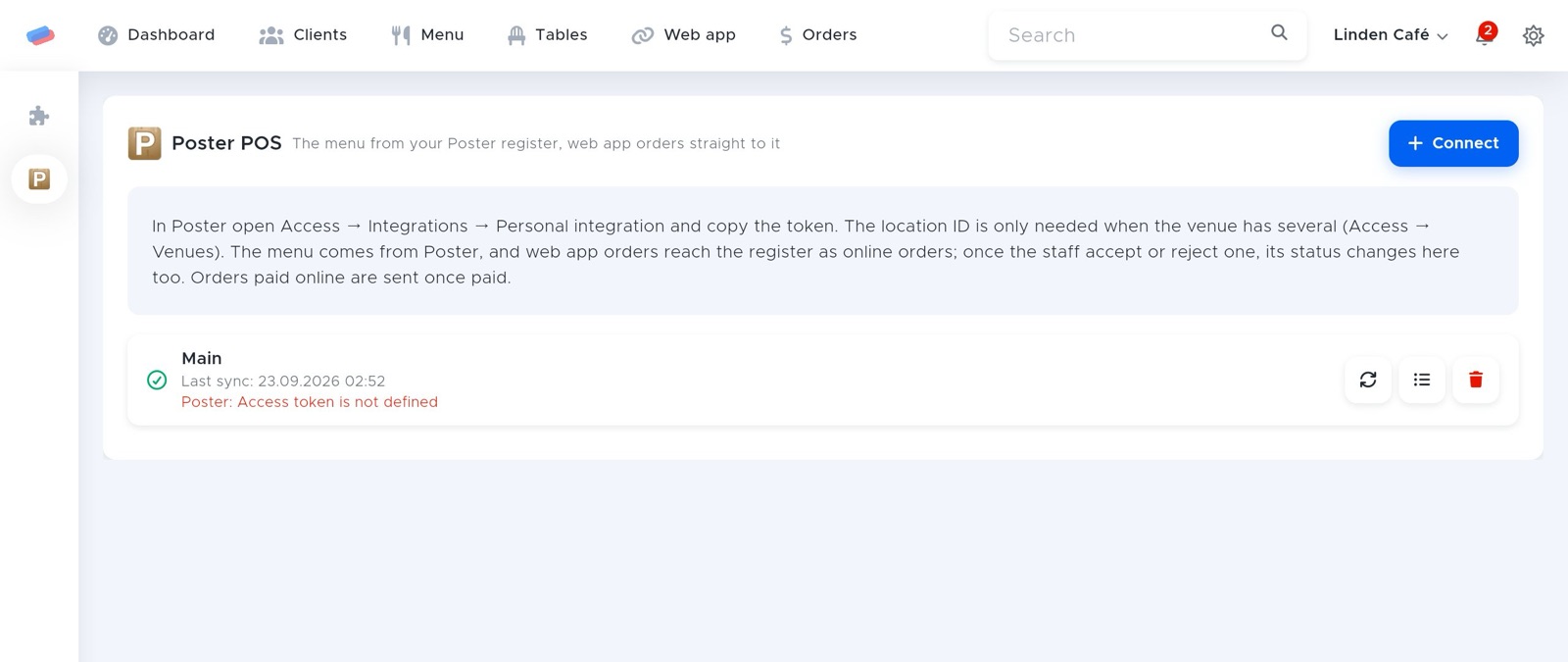
- Go to the module’s page in the side panel and press Connect.
- Sign in to Poster POS in the window that opened and allow anyCRM access. Come back to anyCRM and press Done.
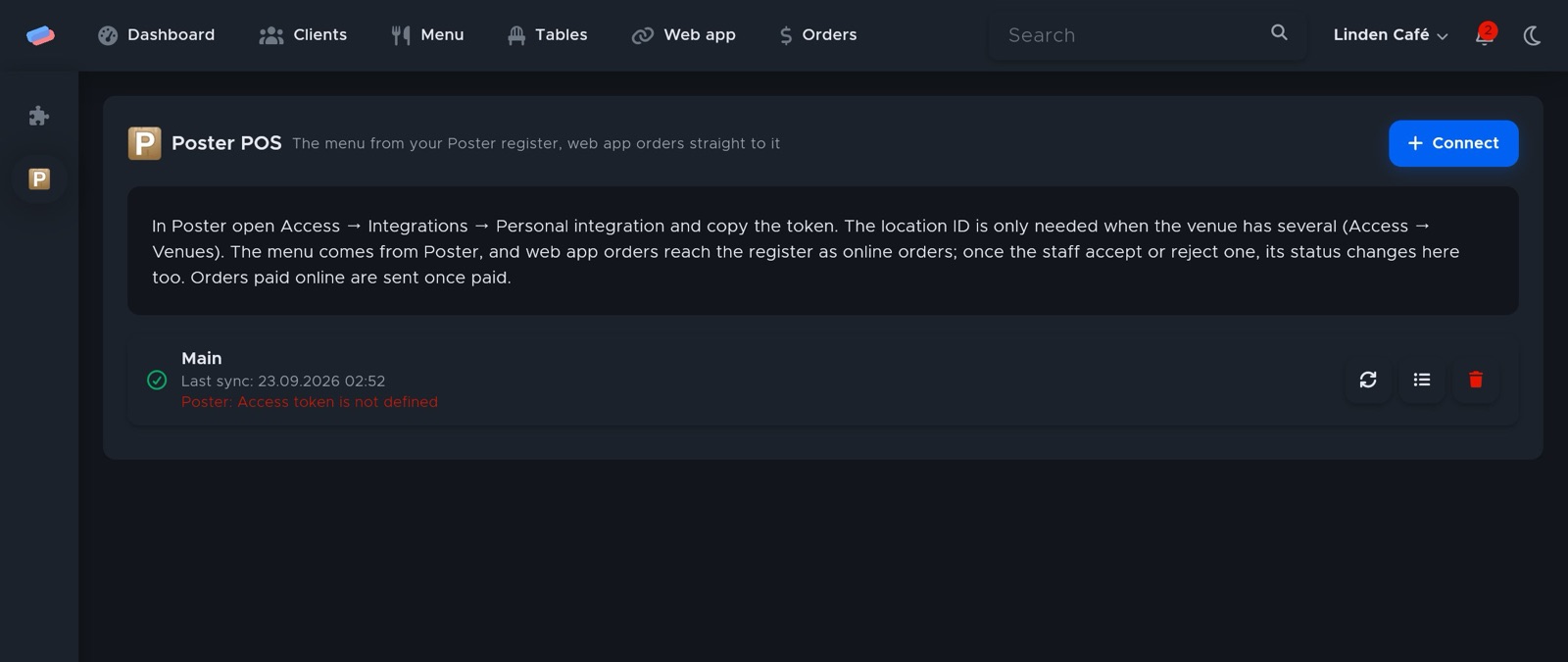
- The account appears in the list with a green tick. An error, if any, shows in red under its name.
After connecting
- The ⟳ button refreshes the menu from Poster; the sync log shows what changed.
Good to know
- Orders paid online reach the till after payment.
Can’t get it connected? Write to us and we’ll help.