

 Google reviews
- Price
- 50 UAH/mo
- For
- services, food service, shops
- Required modules
- Clients
What it does
After a visit or an order, the customer is asked to rate you. 4–5 stars lead to a Google review; 1–3 ask what went wrong, and only you see it.
What you need
- A Google Business Profile for your business.
Where to get the keys
- Open your Google Business Profile.
- Press “Ask for reviews”.
- Copy the link (like https://g.page/r/…/review).
Connecting in anyCRM
- Open Modules in anyCRM, find “Google reviews” and press Enable.
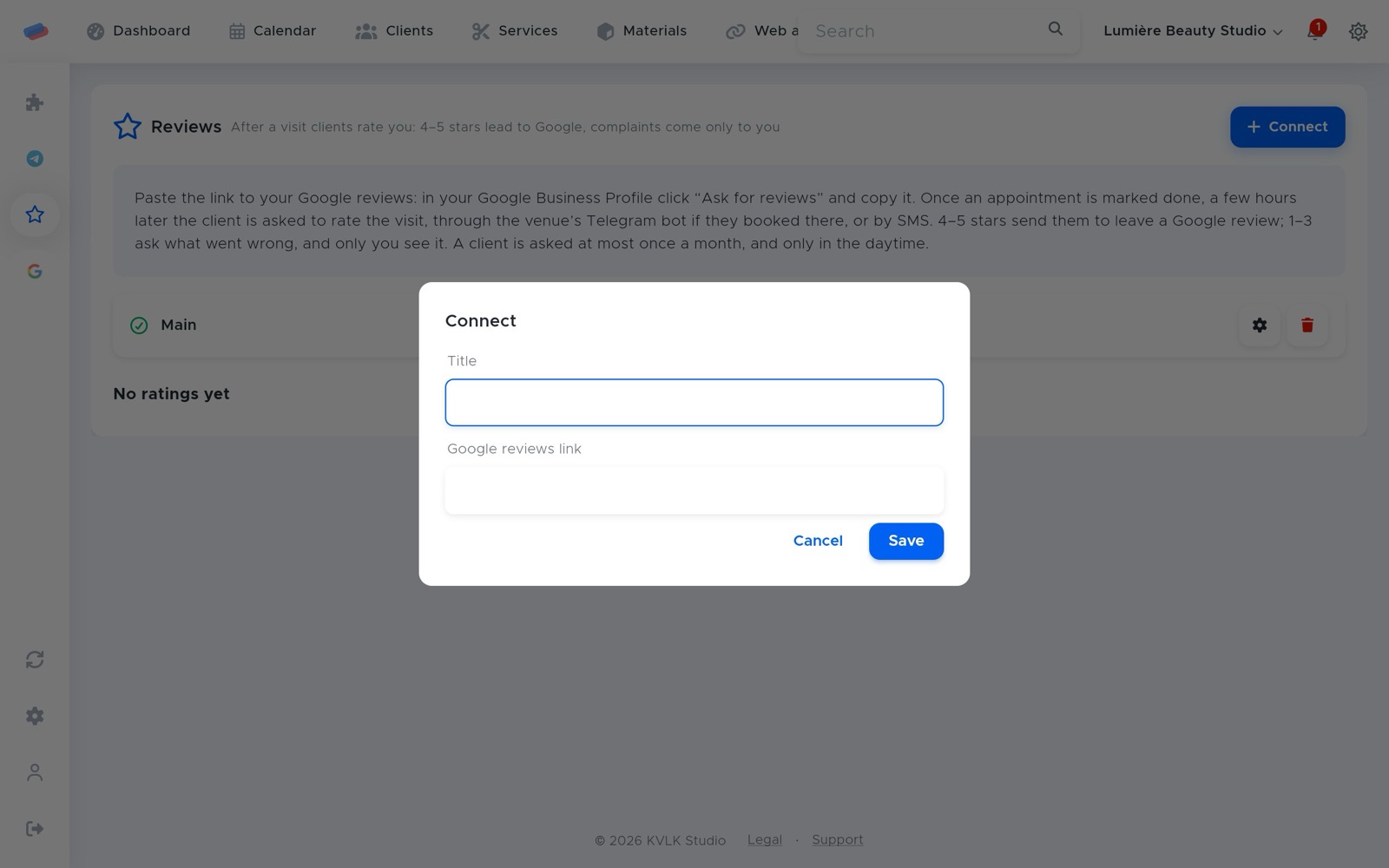
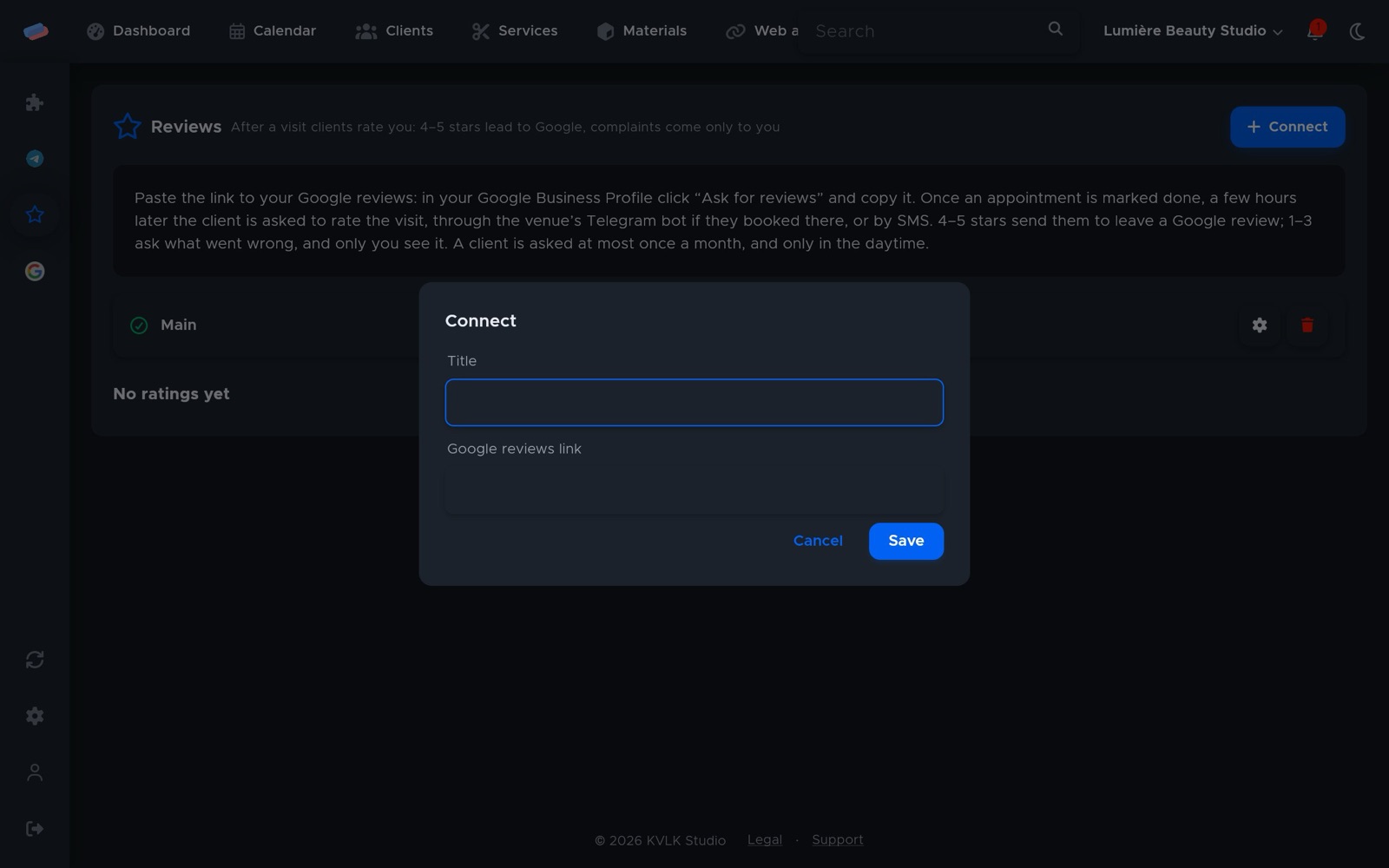
- Go to the module’s page in the side panel and press Connect.
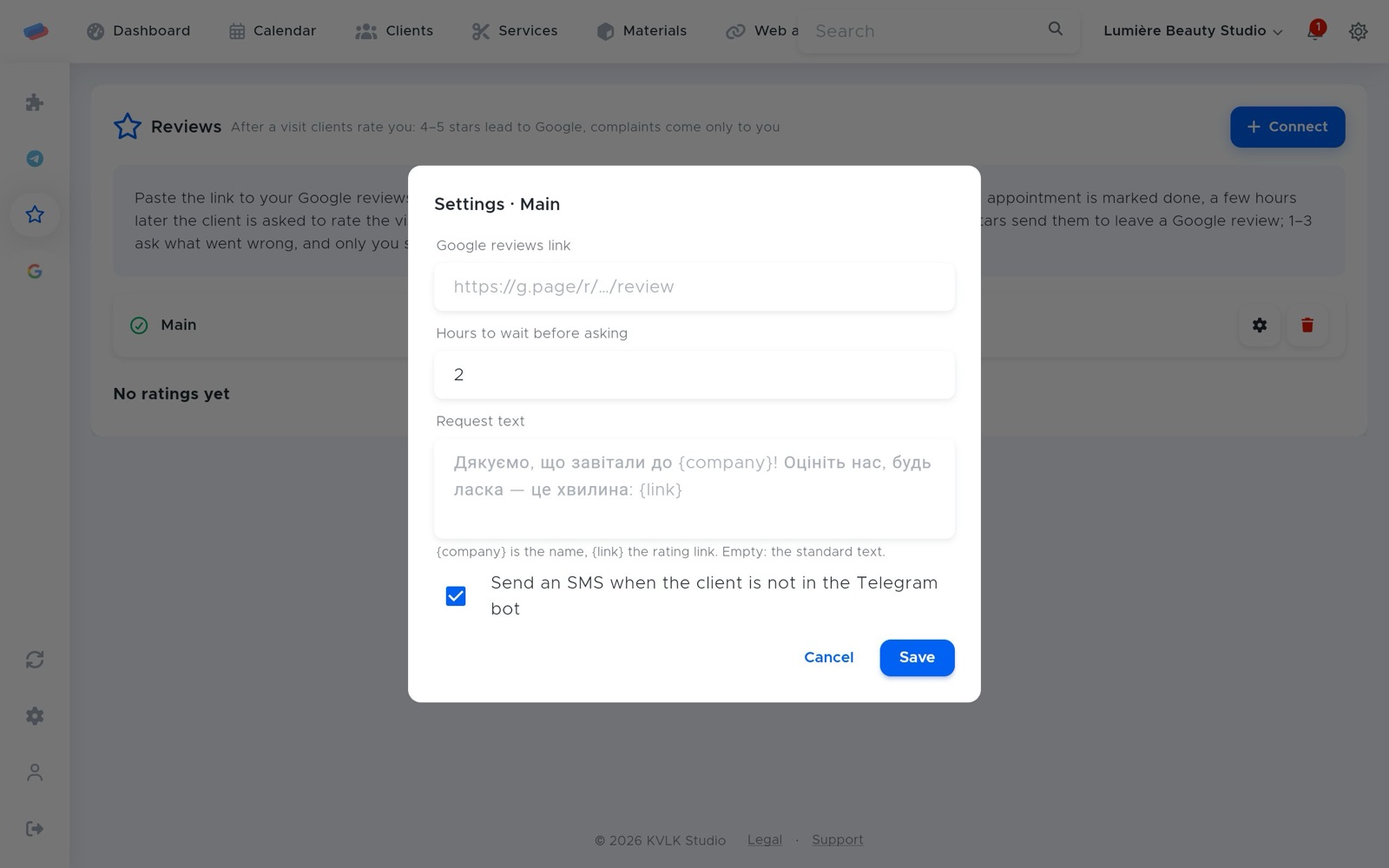
- Fill in the fields and press Save:
- Title — how the account is labelled in anyCRM (optional)
- Google reviews link
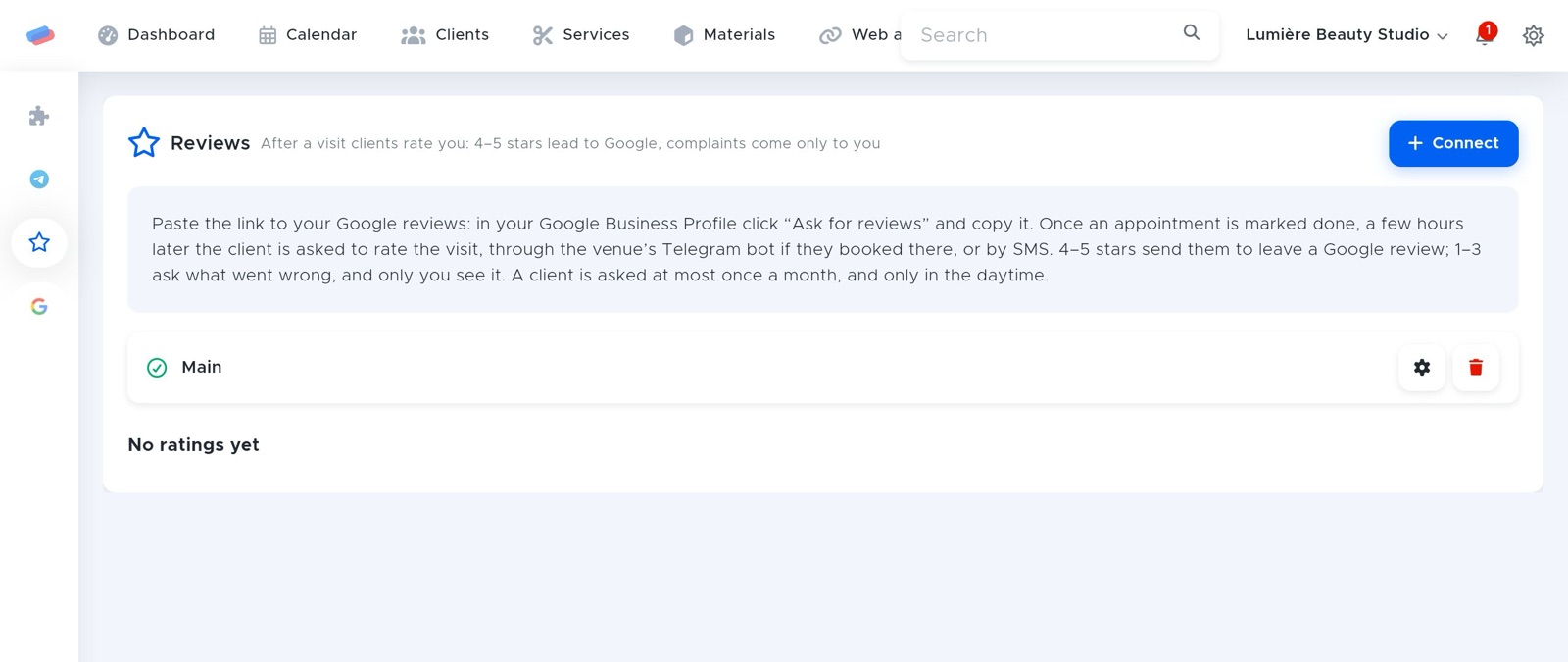
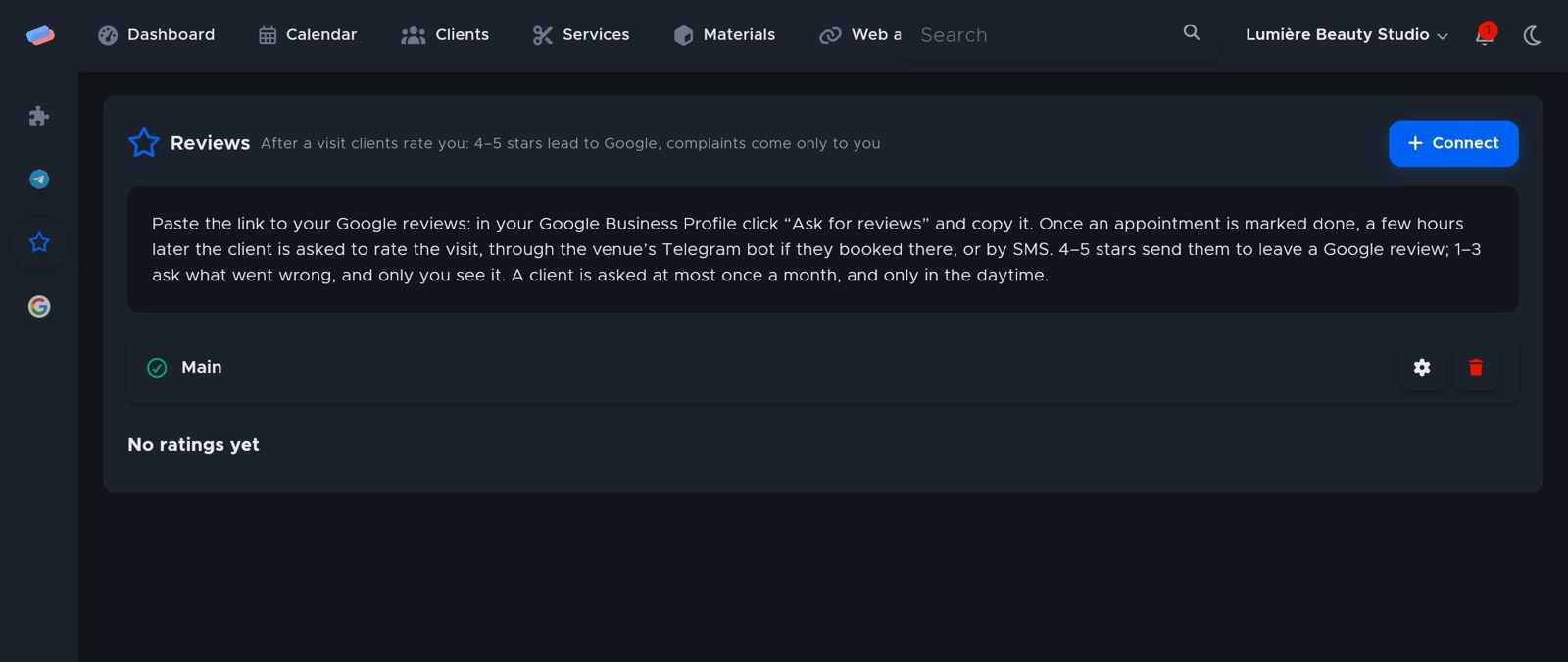
- The account appears in the list with a green tick. An error, if any, shows in red under its name.
After connecting
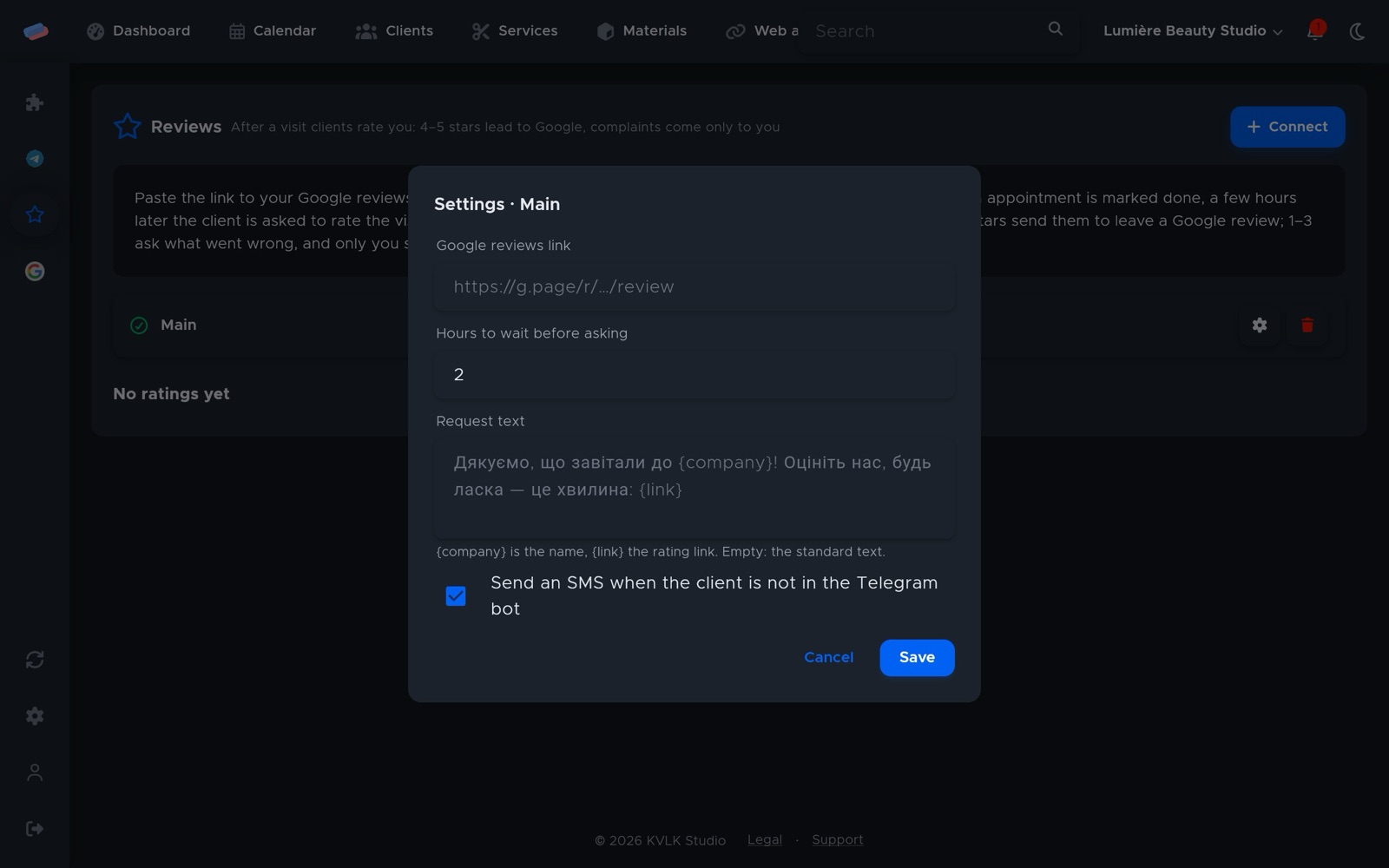
- Press ⚙ next to the account: hours to wait before asking (0–72, 2 by default), the request text ({company}, {link}) and whether to send an SMS to those not in the Telegram bot.
- Ratings and comments show on the module page.
Good to know
- One customer is asked at most once a month, and only in the daytime.
- Marketplace orders are never asked.
Can’t get it connected? Write to us and we’ll help.